


What causes this error
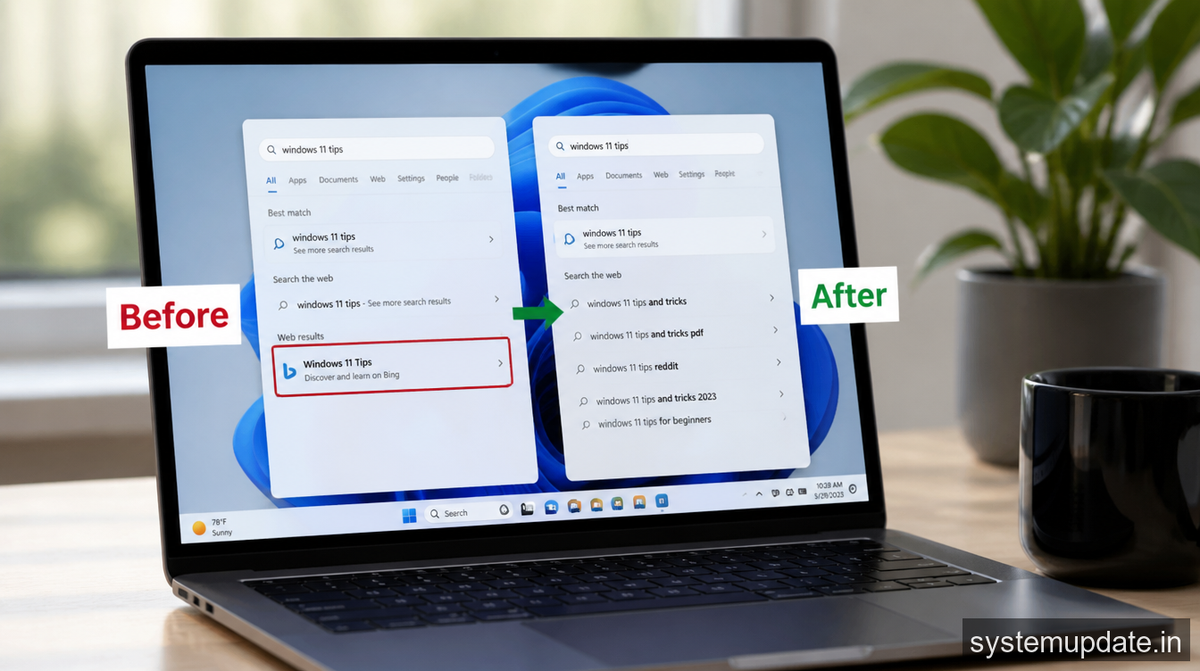
The integration of Bing into the Windows 11 Start menu search is a deliberate design choice by Microsoft, aiming to provide users with a more comprehensive search experience. However, for many, this feature has become a source of annoyance, particularly when it slows down the search process or returns irrelevant results. The root cause of this issue lies in how Windows 11 handles search queries, passing them through Bing’s servers before displaying the results. This can lead to a delay in displaying local files and applications, which is frustrating for users who just want to find something on their computer quickly.
The actual system component involved in this process is the Windows Search service, which is responsible for indexing and retrieving files, emails, and other data on your computer. When you type a query into the Start menu, Windows Search checks its local index and then sends the query to Bing if it doesn’t find a match locally. This is where the problem arises, as the communication with Bing’s servers can introduce latency and return results that aren’t relevant to what you’re looking for on your local machine.
Common triggers for this issue include failed updates, corrupt system files, or conflicts with other search-related applications. For instance, if an update fails to install correctly, it might leave the search function in a state where it relies too heavily on Bing, affecting performance. Similarly, corrupt system files can disrupt the normal functioning of the Windows Search service, leading to unwanted Bing results.
How to fix this issue — step by step
To remove Bing from your Windows 11 Start menu search results, follow these steps. Note that you’ll need administrator privileges to complete this process.
- Open the Registry Editor: Press
Win + Rto open the Run dialog, typeregedit, and press Enter. You’ll need to click Yes on the User Account Control prompt to proceed.
After opening, you’ll see the Registry Editor window with a tree-like structure on the left, showing various registry keys.
- Navigate to the relevant registry key: In the Registry Editor, navigate to the key
HKEY_CURRENT_USER\Software\Microsoft\Windows\CurrentVersion\Search.
You’ll see several subkeys and values under this key, which configure how Windows Search behaves.
- Modify the registry to disable Bing integration: Look for a value named
BingSearchEnabledand double-click it. If this value doesn’t exist, you can create it by right-clicking in the right pane, selecting New > DWORD (32-bit) Value, naming itBingSearchEnabled, and then double-clicking it to edit. Set the value data to0to disable Bing search integration.
After making this change, you should see the value BingSearchEnabled with a value of 0, indicating that Bing search has been disabled for your user account.
- Restart your computer: For the changes to take effect, you’ll need to restart your computer. Click on the Start menu, select the Power button, and choose Restart.
Upon restarting, your Windows 11 Start menu search should no longer include Bing results, providing a faster and more local search experience.
If that didn’t work — alternative method
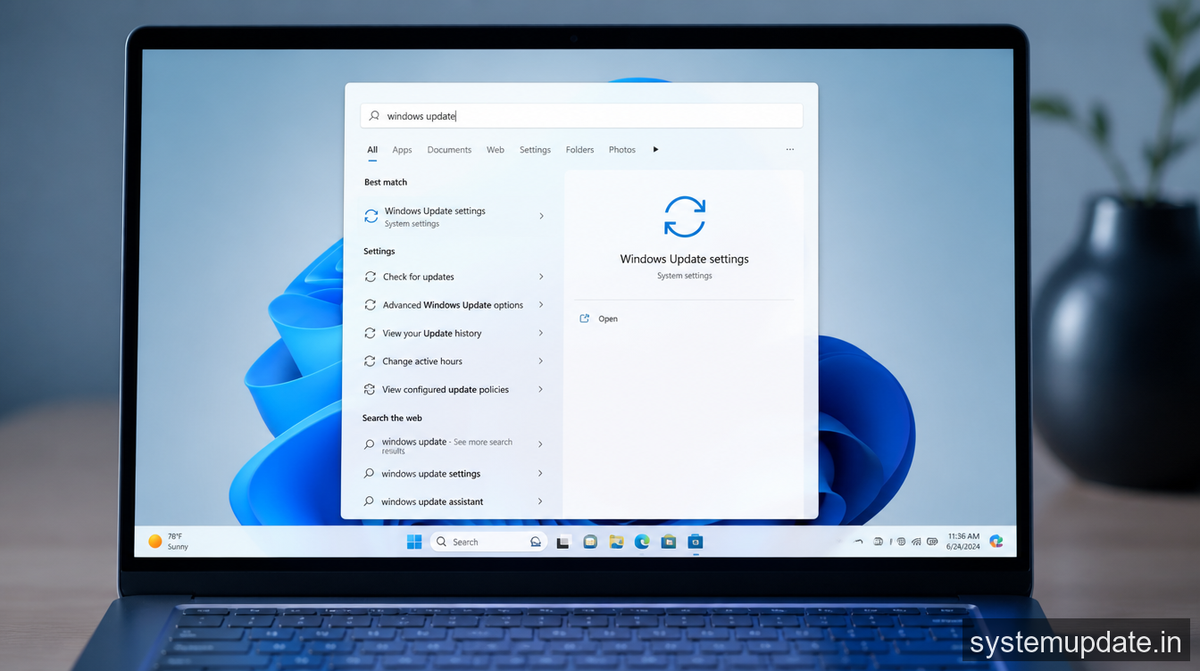
If modifying the registry doesn’t yield the desired results, or if you’re not comfortable editing the registry, there’s an alternative method you can try. This involves using the Group Policy Editor, which is available in Windows 11 Pro and higher editions. To use this method, open the Group Policy Editor by searching for gpedit.msc in the Start menu, then navigate to the Computer Configuration > Administrative Templates > Windows Components > Search section. Here, you can enable the policy Do not allow web search, which will prevent Windows from sending your search queries to Bing. After enabling this policy, restart your computer for the changes to take effect.
Another approach, if you’re using Windows 11 Home, is to use a third-party tool or script that can automate the process of disabling Bing integration. However, be cautious when using such tools, ensuring they come from reputable sources to avoid any potential risks to your system’s security.
Preventing this issue from recurring
To prevent Bing from re-integrating into your Start menu search results in the future, especially after Windows updates, consider setting the BingSearchEnabled registry value to 0 for all users on your system. This involves modifying the HKEY_LOCAL_MACHINE branch of the registry, which requires caution and administrative privileges. Additionally, keeping your Windows 11 installation up to date can help, as Microsoft occasionally releases updates that improve the search functionality and potentially reduce the reliance on Bing.
Frequently asked questions
Can I completely remove Bing from Windows 11?
While you can disable Bing integration in the Start menu search, completely removing Bing from Windows 11 is not straightforward and might not be possible without affecting other Microsoft services.
Does disabling Bing search affect other Microsoft services?
Disabling Bing search integration in the Start menu should not affect other Microsoft services like Microsoft Edge or Office applications that use Bing for other purposes.
How do I re-enable Bing search if I change my mind?
To re-enable Bing search, simply reverse the steps outlined in the fix section, setting the BingSearchEnabled value back to 1 or deleting it if you created it.
Is it safe to edit the registry?
Editing the registry can be safe if you follow instructions carefully and back up your registry before making changes. However, incorrect changes can cause system instability, so proceed with caution.
Does this fix work for Windows 10 as well?
The steps to disable Bing integration might differ slightly in Windows 10. While the registry method could work, Windows 10 has different versions and updates that might affect the process.
Final thoughts
If you’re looking to streamline your Windows 11 search experience and reduce the influence of Bing, starting with the registry edit is a straightforward and effective first step. Remember, the goal is to enhance your productivity and user experience, so don’t hesitate to explore and adjust settings that better suit your needs. By taking control of how Windows 11 searches for files and applications, you can enjoy a faster and more personalized computing experience.
