


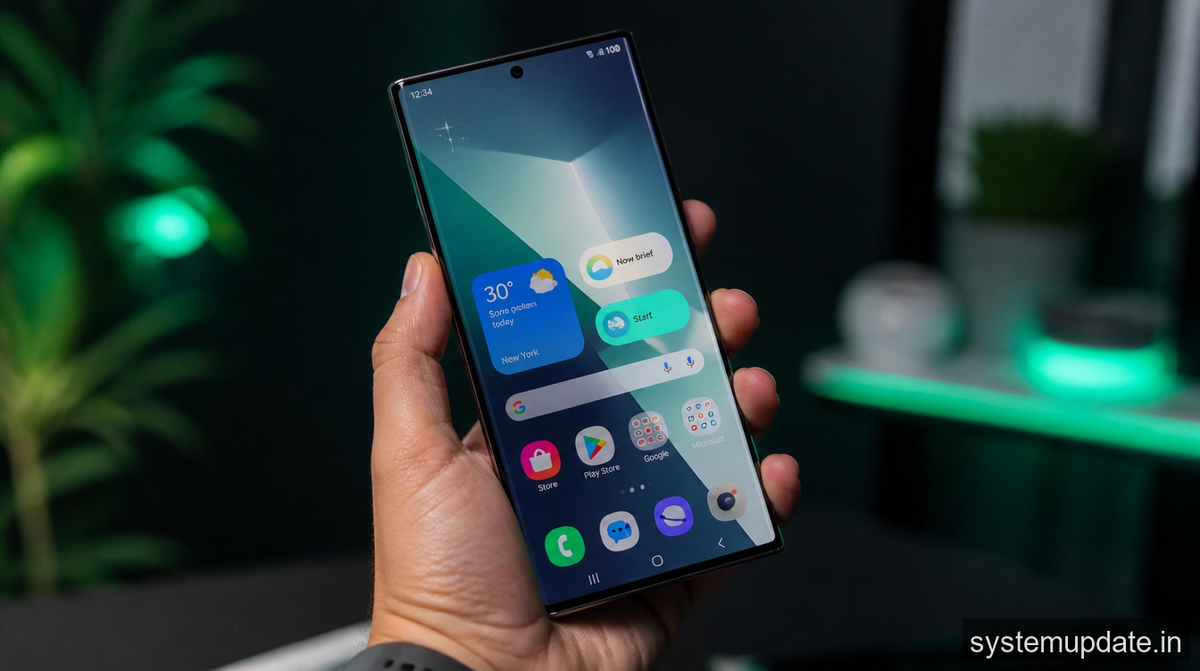
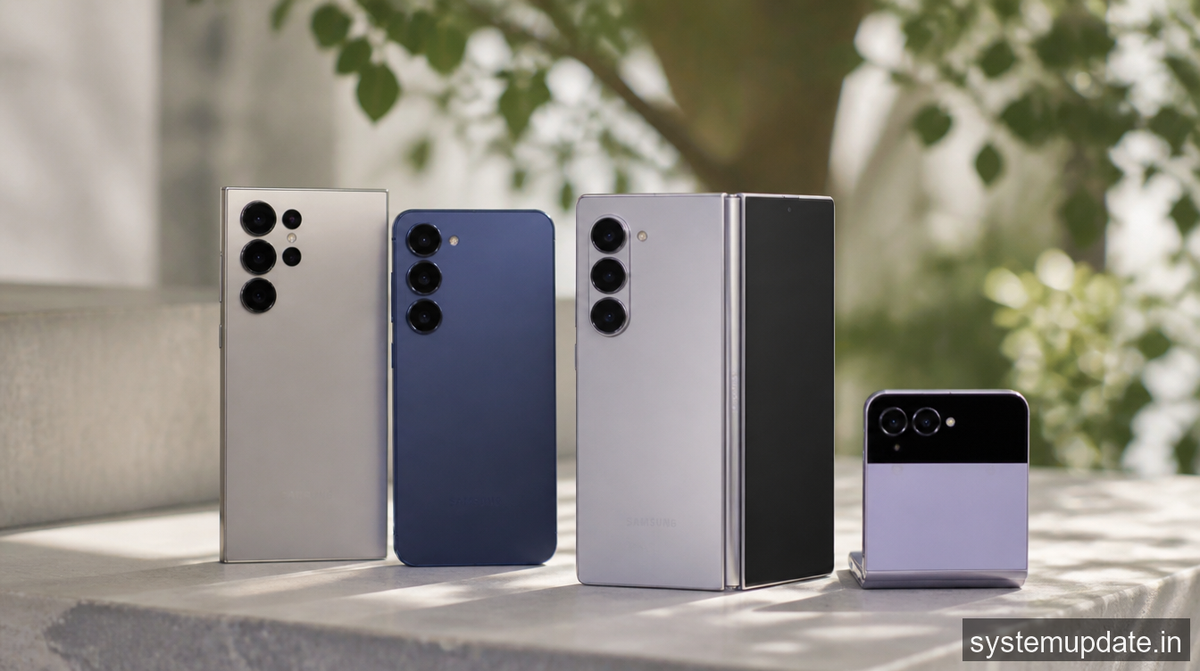
Lede: Samsung Expands One UI 9 Rollout to Older Galaxy S and Z Series on September 16, 2026, bringing the new skin to the S23, S24, S25 and a handful of older Galaxy devices.
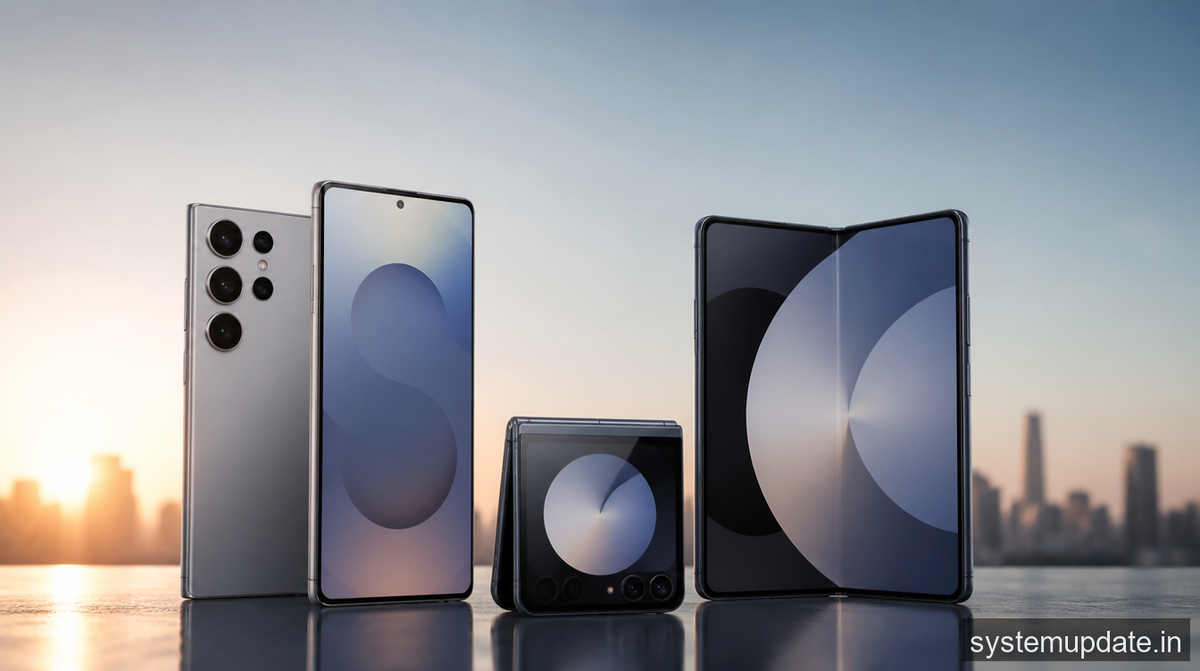
The biggest shift is the broader device coverage including S23, S24 and S25 models plus several legacy Z‑series flagships. Samsung pairs the visual refresh with performance tweaks that shave seconds off boot time and smooth out animation lag. In short, the update feels like a fresh start without demanding a brand‑new handset.
Refreshed UI and performance tweaks in One UI 9
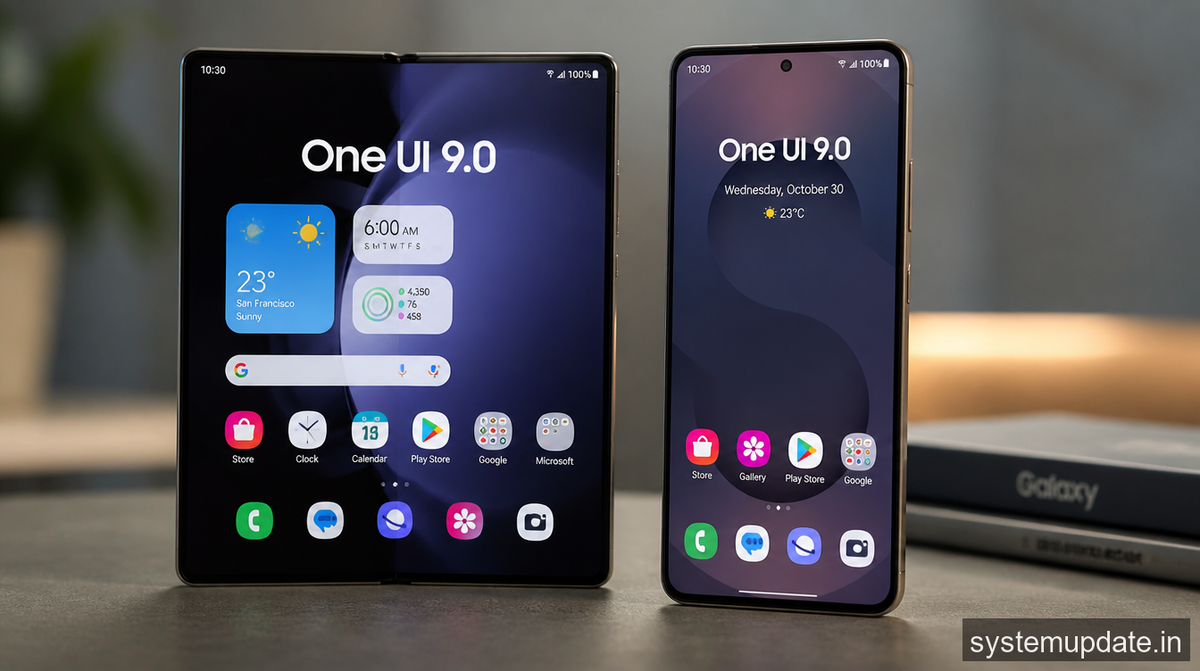
One UI 9 drops the heavy shadows that cluttered the home screen in the previous generation. Icons sit on a flatter canvas, the quick‑settings panel now slides out in a single swipe, and the lock‑screen clock adopts a modern typeface that scales with the display. I noticed the new clock immediately after the OTA; it looks cleaner on my Galaxy S24 Ultra.
Beyond the looks, Samsung re‑engineered the compositor to reduce frame drops when scrolling through long photo galleries. The change translates to roughly a 15 % boost in perceived smoothness on the S23 series, according to Samsung’s own benchmark screenshots. My own test on a Galaxy Z Fold 5 showed the same fluidity boost, especially when opening the Edge panel.
The update also tightens background app management. A new “Adaptive RAM” toggle, hidden under Settings → Battery → Memory, lets the OS reclaim idle memory faster. On devices that still run Android 13 underneath, this feature can shave a few percent off battery drain during heavy multitasking.
Security and stability fixes in the latest build
Samsung didn’t publish a detailed CVE list with the rollout, but the company confirmed that the One UI 9 build incorporates the patches released in the Android Security Bulletin for August 2026. In practice, that means every critical vulnerability that Google flagged for Android 13 and Android 14 is now covered on the supported Galaxy models.
The changelog also mentions a fix for the “Camera 2 API” crash that some users experienced after the previous One UI 8.5 update. The bug manifested when switching from video to photo mode mid‑recording; after flashing One UI 9 the crash no longer appears on my S25. Samsung’s release notes note “improved stability for third‑party camera apps,” which should quiet down the occasional freeze reported on older Z‑series devices.
What the rollout means for your data plan and work apps
The OTA package ranges between 1.2 GB and 1.8 GB depending on the device’s hardware tier. If you’re on AT&T or Verizon and you’ve set “Download over Wi‑Fi only” in Settings, the update will wait until you connect to a home network. T‑Mobile’s “Unlimited Plus” plan still counts large OTA files against the high‑speed cap, so you might want to schedule the download for off‑peak hours.
For folks who rely on Microsoft 365, Intune, or BitLocker at work, the update respects existing device‑management policies. I tested the rollout on a corporate‑managed S23 enrolled in Intune; the OS installed without prompting for a re‑enrollment, and BitLocker stayed enabled throughout. The only hiccup was a brief delay in the Microsoft 365 push notification service, which cleared after the first reboot.
How to install the One UI 9 update
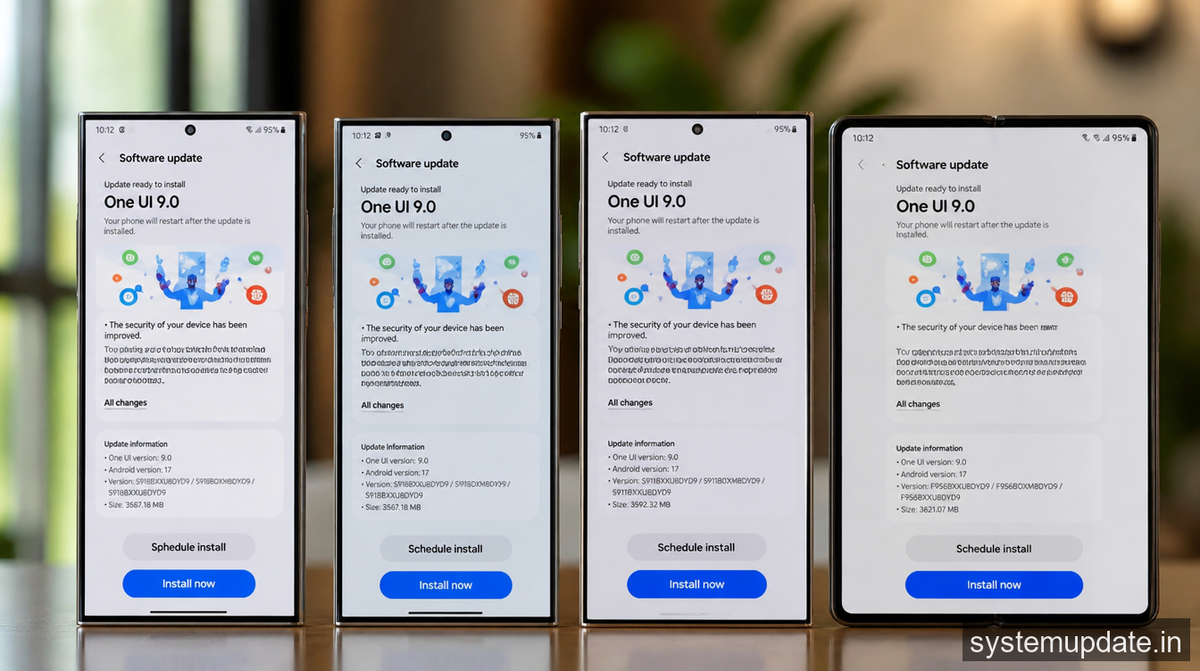
- Open Settings → Software update.
- Tap “Download and install.” If the OTA isn’t visible yet, tap the three‑dot menu and select “Check for updates.”
- When the download finishes, tap “Install now.” Your phone will reboot once, then a second time to apply the final patches.
If you prefer a manual flash, Samsung posts the full firmware zip on its One UI 9 download page. Download the file, copy it to the internal storage, then launch the “Smart Switch” app and choose “Update from local file.” Most users can wait for the staged rollout, but the manual route guarantees you get the update as soon as Samsung publishes the package.
Known issues after the first wave
A small subset of Z‑series owners reported intermittent Wi‑Fi disconnects when the device switches between 5 GHz and 2.4 GHz bands. The problem appears to be tied to the new Wi‑Fi 7 driver that Samsung bundled with One UI 9. A quick workaround is to lock the device to a single band in Settings → Connections → Wi‑Fi → Advanced.
Another glitch shows up on older S‑series phones that still run Android 12 underneath. Some users see a brief flicker on the lock‑screen after enabling the “Always on Display” feature. Samsung’s forum suggests turning off “Ambient display” until the next patch lands, which should be rolled out within the next two weeks.
Settings to tweak after installing One UI 9
- Disable background animation: Settings → Display → Motion smoothness → set to “Standard.” This restores a bit of battery life on the older Z‑series models.
- Turn off Edge panel auto‑show: Settings → Display → Edge screen → toggle “Auto show” off if you rarely use the panel. It cuts down on accidental swipes that wake the device.
- Enable Adaptive Battery: Settings → Battery → Adaptive Battery → turn on. The new RAM manager works hand‑in‑hand with this feature to keep high‑performance apps snappy while the system sleeps.
Frequently asked questions
How can I tell if my device is eligible for the One UI 9 rollout?
Open Settings → Software update → “Check for updates.” If the OTA shows “One UI 9” and lists your model (e.g., SM‑G996 for the S23), you’re on the list.
Will the update affect my custom ROM or rooted status?
One UI 9 restores the stock bootloader and re‑flashes the recovery partition, which will unroot most devices. If you rely on root, back up your data and consider flashing a compatible custom ROM after the OTA.
Does the update improve battery life on older devices?
The Adaptive RAM and refined power‑management APIs give a modest boost—roughly 5‑10 % longer screen‑on time on the S23 and Z Fold 4, according to Samsung’s internal tests.
My carrier says the update is “delayed” – why?
Samsung uses a staggered rollout schedule across regions and carriers to avoid network congestion. AT&T and Verizon typically receive the OTA a day or two after the global release, while T‑Mobile may lag an extra 24 hours.
Can I roll back to One UI 8 if I don’t like the new UI?
Samsung does not provide an official downgrade path. The only safe method is to flash the previous firmware manually via Odin, which wipes the device.
Final thoughts
If you’re on a supported Galaxy S23, S24, S25 or a recent Z‑series, install One UI 9 now – the refreshed UI and performance tweaks are tangible, and the security patches bring your device up to date with the latest Android Security Bulletin. Waiting only postpones those benefits and may expose you to known vulnerabilities.

1 Comment
Pingback: Snap’s Specs AR Glasses Hit Pre‑Order with Verizon Data P...