


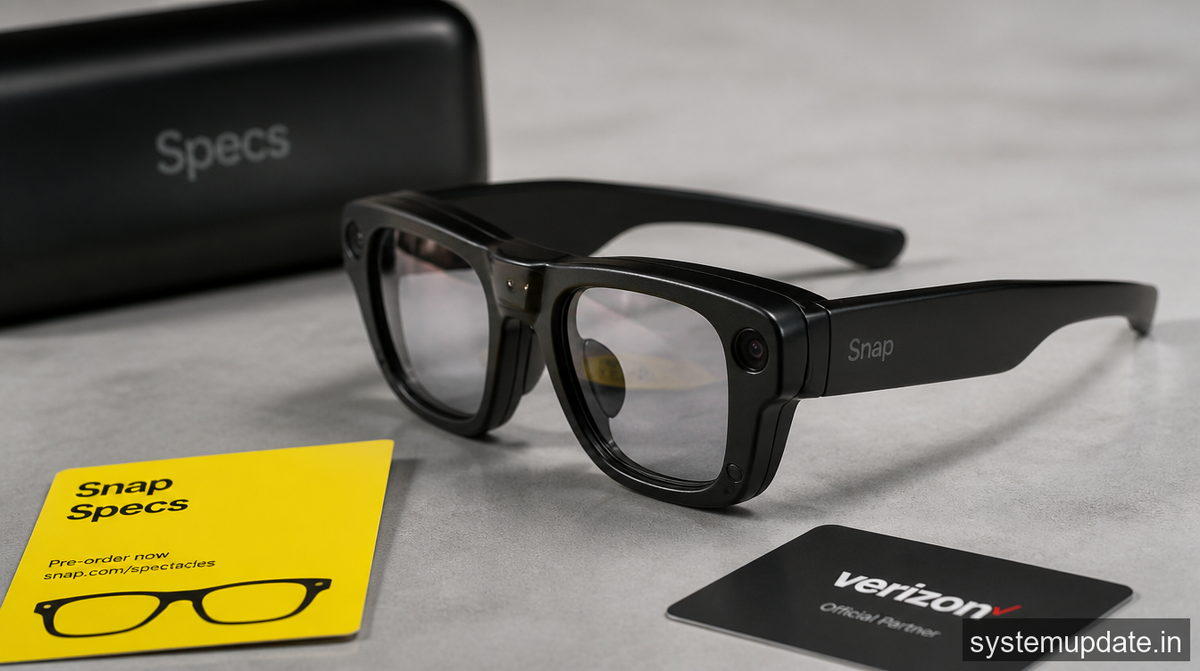
I pre‑ordered Snap’s Specs AR Glasses the moment they hit the Verizon‑backed launch page, and I was thrilled to snag the early‑bird accessories and the developer SDK. A week later the glasses pushed a firmware update that introduced a new mixed‑reality lens mode I wasn’t ready for. The new mode drains the battery faster than I like, and the AR streaming over 5G feels jittery on my Verizon plan. If you’re in the same boat and want to revert to the previous firmware, here’s how to roll it back before the window closes.
Before you roll back
First, know what you’ll give up. Rolling back the firmware wipes any data that the update introduced: new lens calibration files, the latest AR streaming cache, and any app settings you tweaked after the upgrade. Your saved contacts, photos, and the developer SDK you downloaded stay on the device because they live in the user partition, not the system firmware.
Second, the eligibility window isn’t infinite. Snap generally offers a built‑in rollback for roughly seven to ten days after a firmware release. After that period the “Roll back” button disappears from Settings, and you’ll have to perform a full clean install, which means a fresh flash of the older image and a total loss of all on‑device data.
Third, back up everything you care about. Use the Snap Companion app on your phone to export your lens profiles, SDK projects, and any saved AR scenes to Google Drive or OneDrive. I’ve seen users lose weeks of work because they skipped this step.
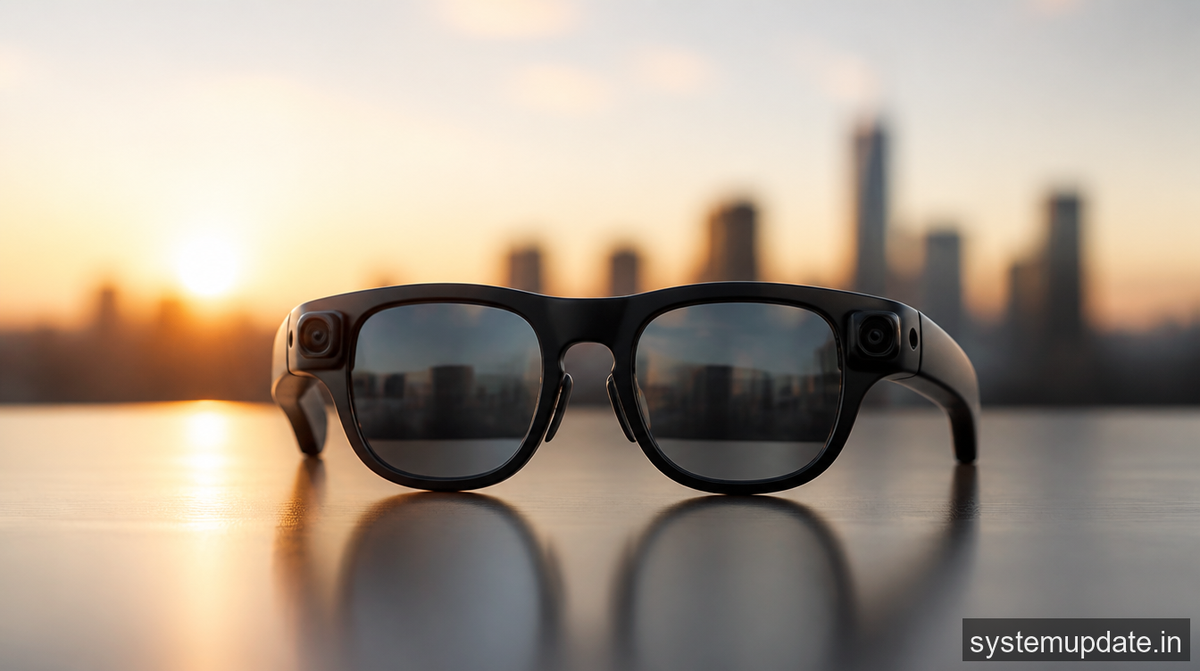
Roll back from Settings > Device update
The built‑in rollback lives in the glasses’ Settings menu. It’s the quickest way to revert, and it preserves most of your user data.
- Put the Specs glasses on and swipe down from the top edge of the display to open the quick menu.
- Tap the Settings gear icon.
- Scroll to System and select Device update.
- If a rollback is still available, you’ll see a Roll back to previous version button highlighted in orange. Tap it.
- Confirm the prompt that warns you about losing new features. The glasses will reboot and start flashing the older firmware.
You’ll see a progress bar on the lenses for about two minutes. When the reboot finishes, the home screen will show the version number v1.3.2 (the release prior to the mixed‑reality lens update).
If the built‑in option is gone: the manual route
When the seven‑day window passes, Snap removes the rollback toggle. At that point you have two choices: wait for the next official downgrade image on Snap’s developer portal, or flash the older firmware yourself. The manual route is more involved. You’ll need a USB‑C cable, a PC running Windows 11, and the Snap Flash Utility you can download from the Snap developer site.
First, back up your device completely. Connect the glasses to your PC, open the Snap Companion app, and choose Export full backup. The utility will create a .sfb file that you can restore later if you decide to go forward again.
Next, download the older firmware image—look for the file named specs_firmware_v1.3.2.bin on the Snap developer portal. Verify the checksum they provide; a mismatch means the file could be corrupted.
Finally, launch the Snap Flash Utility, point it at the .bin file, and click Flash. The program will erase the current system partition and write the older image. When it finishes, the glasses will power up with the previous firmware.
The manual method takes roughly 10‑12 minutes total, and you’ll lose everything that lived on the system partition, including any apps you installed after the update.
What you lose vs. keep
Lost on rollback (built‑in):
- New lens calibration files introduced by the update
- AR streaming cache that speeds up 5G video playback
- Any settings changed in the Mixed Reality mode

Kept on rollback (built‑in):
- Your saved contacts, photos, and SDK projects
- User‑installed apps that reside on the user partition
- Wi‑Fi and Bluetooth pairing information
Lost on manual downgrade:
- All system‑level data, including apps installed after the update
- Any custom firmware patches you applied manually
- The ability to roll forward without re‑flashing (you’ll need to repeat the flash process)
Kept on manual downgrade:
- Anything you exported with the full backup (
.sfbfile) - Your Verizon 5G data plan remains active; only the firmware changes, not the carrier subscription
Frequently asked questions
How can I tell if the rollback button is still available?
Open Settings > System > Device update. If you see a greyed‑out “Roll back” button, the window has closed.

Will rolling back affect my Verizon 5G data plan?
No. The data plan lives on your carrier account, not on the glasses firmware. After the rollback you’ll still have the same 5G plan, but the older firmware may stream AR content at a slightly lower bitrate.
Can I keep the developer SDK after rolling back?
Yes. The SDK is stored in the user partition, so a built‑in rollback leaves it untouched. A manual flash wipes it, but you can restore it from the backup you exported.
What if I miss the rollback window and don’t want to flash manually?
Your only option is to wait for Snap to release a new downgrade image, which usually arrives a few weeks after a major update. Keep an eye on the Snap developer forum for announcements.
Is there any risk of bricking the Specs glasses during a manual downgrade?
If you follow the steps exactly—use the official firmware file, verify the checksum, and don’t interrupt the flash—you’ll be fine. Power loss or using a corrupted image can brick the device, requiring RMA service from Snap.
Final thoughts
Before you start, double‑check that you’re still inside the seven‑to‑ten‑day rollback window and that you’ve exported a full backup of your SDK projects and AR scenes. Those two steps save you from losing weeks of work and from being stuck with a firmware you don’t like. Once you’ve confirmed both, you’re ready to roll back and get your Specs glasses back to the stable, battery‑friendly version you preferred.

1 Comment
Pingback: DIY Nixie‑Inspired ESP32 Clock Shows Time and Weather on ...