


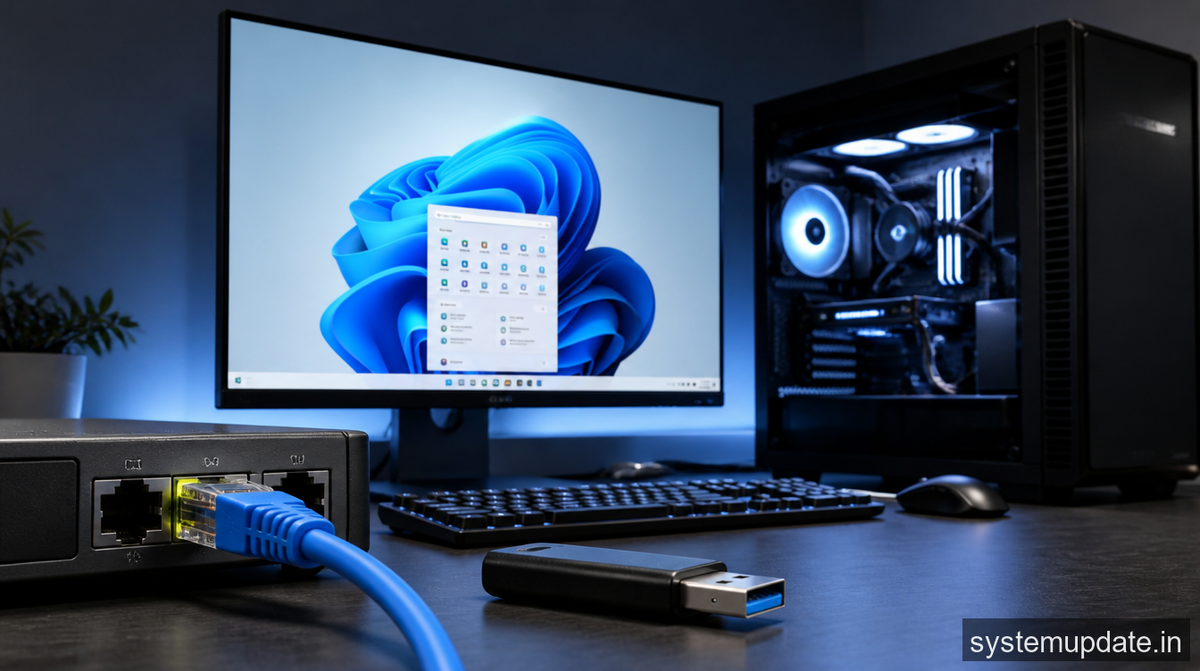
What causes this error
The error you’re experiencing is likely due to a corrupted installation media or a faulty Ethernet connection. When you try to install Windows 11 using a USB drive, the installation process may fail if the USB drive is not properly formatted or if the Ethernet connection is not stable. Additionally, if your desktop’s BIOS settings are not configured correctly, it can also prevent the installation process from completing successfully. To fix this issue, we need to ensure that our USB drive is properly formatted, our Ethernet connection is stable, and our desktop’s BIOS settings are configured correctly.
The root cause of this error is often related to the system’s inability to read the installation media or establish a stable connection with the Ethernet cable. This can be caused by a variety of factors, including a faulty USB drive, a damaged Ethernet cable, or incorrect BIOS settings. To resolve this issue, we need to identify the underlying cause and take corrective action. In the next section, I’ll provide a step-by-step guide on how to fix this error and successfully install Windows 11 on your desktop.
How to fix the installation error step by step
To fix the installation error, we’ll need to follow a series of steps. First, ensure that you have a stable Ethernet connection and a properly formatted USB drive. You’ll also need to configure your desktop’s BIOS settings to boot from the USB drive. Here are the steps:
- Create a bootable USB drive: To create a bootable USB drive, you’ll need to download the Windows 11 ISO file from Microsoft’s official website. Once you’ve downloaded the ISO file, you can use a tool like Rufus to create a bootable USB drive. Rufus is a free tool that can be downloaded from the official Rufus website. To use Rufus, simply launch the application, select your USB drive, and follow the prompts to create a bootable USB drive.
After creating the bootable USB drive, you should see a notification that the process has completed successfully.
- Configure your desktop’s BIOS settings: To configure your desktop’s BIOS settings, you’ll need to restart your computer and enter the BIOS settings menu. The exact steps to enter the BIOS settings menu may vary depending on your desktop’s manufacturer, but it’s usually done by pressing a key like F2, F12, or Del during the boot process. Once you’re in the BIOS settings menu, look for the boot options and set the USB drive as the first boot device.
After configuring the BIOS settings, you should see a confirmation message that the changes have been saved.
- Connect the Ethernet cable: Connect the Ethernet cable to your desktop’s Ethernet port and ensure that it’s securely connected to your router or modem.
After connecting the Ethernet cable, you should see the Ethernet connection indicator light up on your desktop.
- Boot from the USB drive: Restart your desktop and boot from the USB drive. You should see the Windows 11 installation menu appear on your screen.
After booting from the USB drive, you should see the Windows 11 installation menu with options to install Windows 11 or repair your computer.
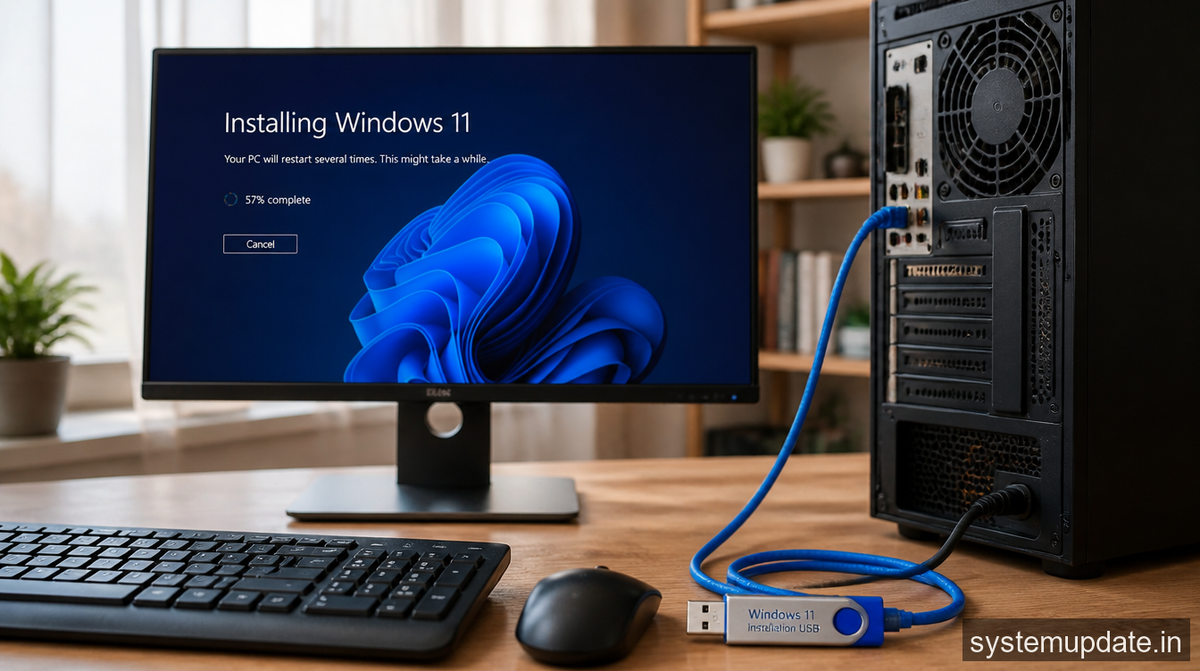
- Follow the installation prompts: Follow the installation prompts to install Windows 11 on your desktop. Make sure to select the correct language, time, and currency formats, and choose the correct installation type (e.g., Windows 11 Home or Windows 11 Pro).
After completing the installation, you should see a notification that Windows 11 has been successfully installed on your desktop.
If you’ve followed these steps and still encounter issues, you may need to try an alternative method.
If that didn’t work — alternative method
If the above steps didn’t work, you can try using a different USB drive or creating a bootable DVD instead. You can also try disabling any unnecessary devices or peripherals during the installation process to prevent any conflicts. Additionally, you can try using a tool like the Windows 11 Media Creation Tool to create a bootable USB drive or DVD. The Media Creation Tool can be downloaded from Microsoft’s official website and can help you create a bootable installation media.
Another alternative method is to use a third-party tool like EaseUS Todo Backup to create a bootable USB drive. EaseUS Todo Backup is a free tool that can be downloaded from the official EaseUS website. To use EaseUS Todo Backup, simply launch the application, select the USB drive, and follow the prompts to create a bootable USB drive.
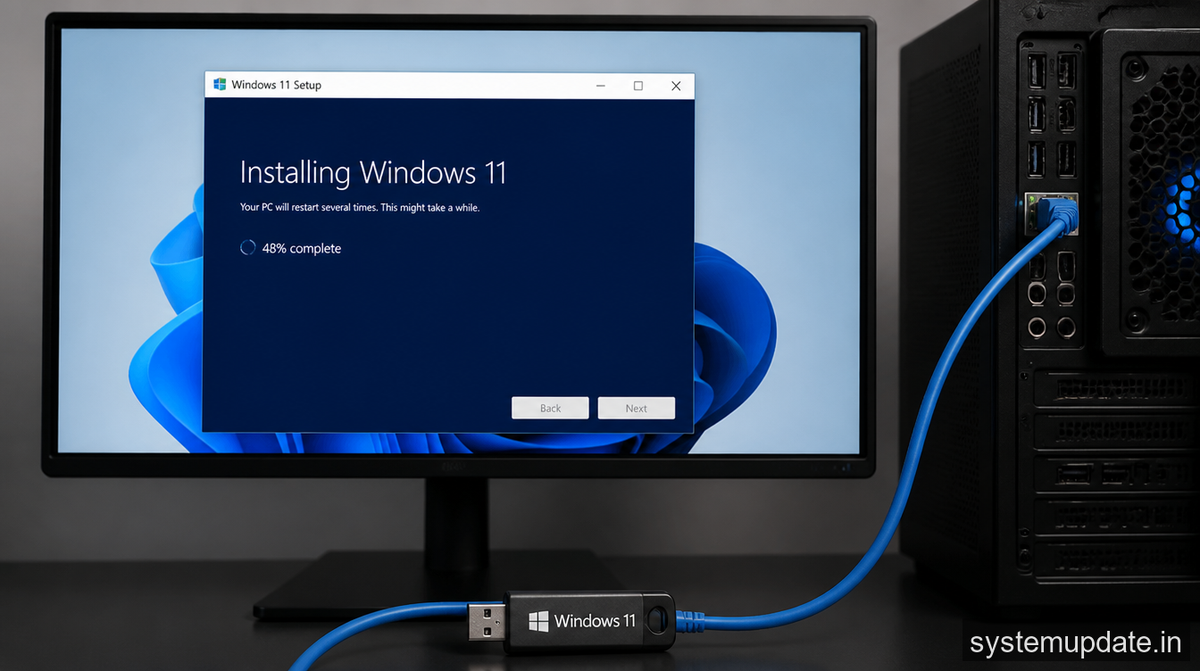
Frequently asked questions
What if I don’t have a USB drive?
If you don’t have a USB drive, you can try creating a bootable DVD instead. You can use a tool like the Windows 11 Media Creation Tool to create a bootable DVD.
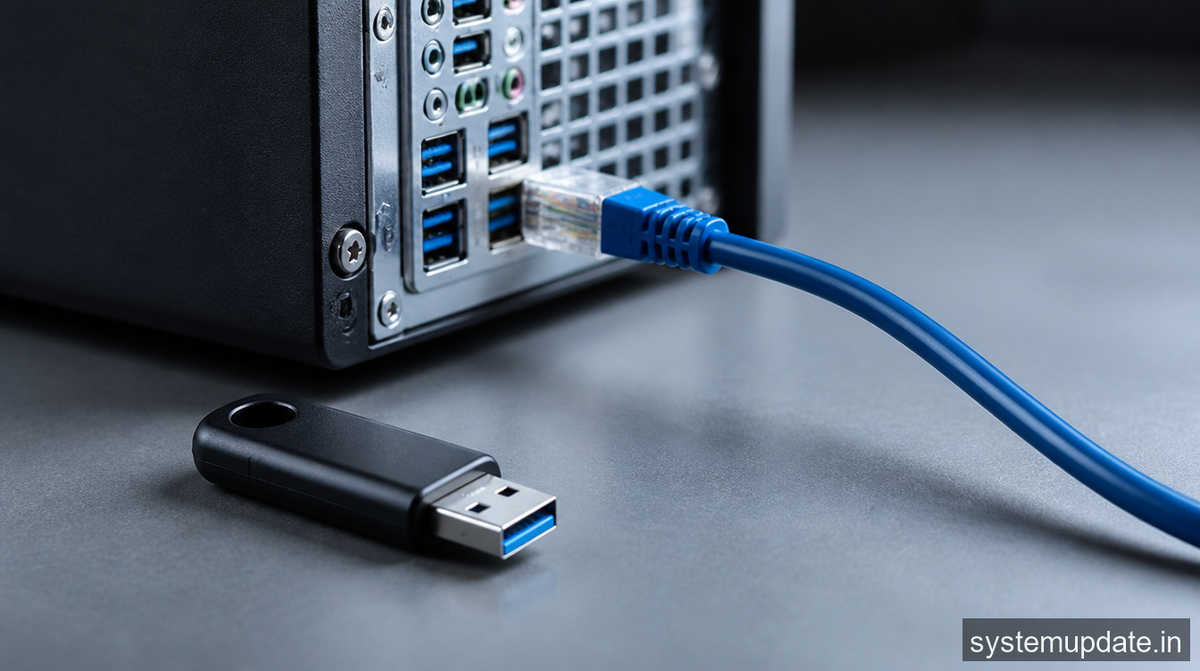
Can I install Windows 11 on a laptop using an Ethernet cable and a USB drive?
Yes, you can install Windows 11 on a laptop using an Ethernet cable and a USB drive. The process is similar to installing Windows 11 on a desktop.
What if I encounter errors during the installation process?
If you encounter errors during the installation process, you can try restarting the installation process or seeking help from Microsoft’s official support website.
Can I use a wireless connection instead of an Ethernet cable?
Yes, you can use a wireless connection instead of an Ethernet cable. However, using a wireless connection may slow down the installation process.
What if I don’t have an Ethernet cable?
If you don’t have an Ethernet cable, you can try using a wireless connection instead. However, using a wireless connection may slow down the installation process.
Final thoughts
If you’re still having trouble installing Windows 11 on your desktop using an Ethernet cable and a USB drive, I recommend trying the alternative methods outlined above. Remember to always use a stable Ethernet connection and a properly formatted USB drive to ensure a smooth installation process. If you’re still experiencing issues, you can seek help from Microsoft’s official support website or try seeking help from a professional.
> Editorial Note: This article mentions EaseUS Todo Backup. SystemUpdate.in may earn a small commission if you purchase through links in this article, at no extra cost to you. Our editorial opinions are independent and not influenced by brand partnerships. We only cover software we believe is genuinely useful for our readers.
