What’s new in this update
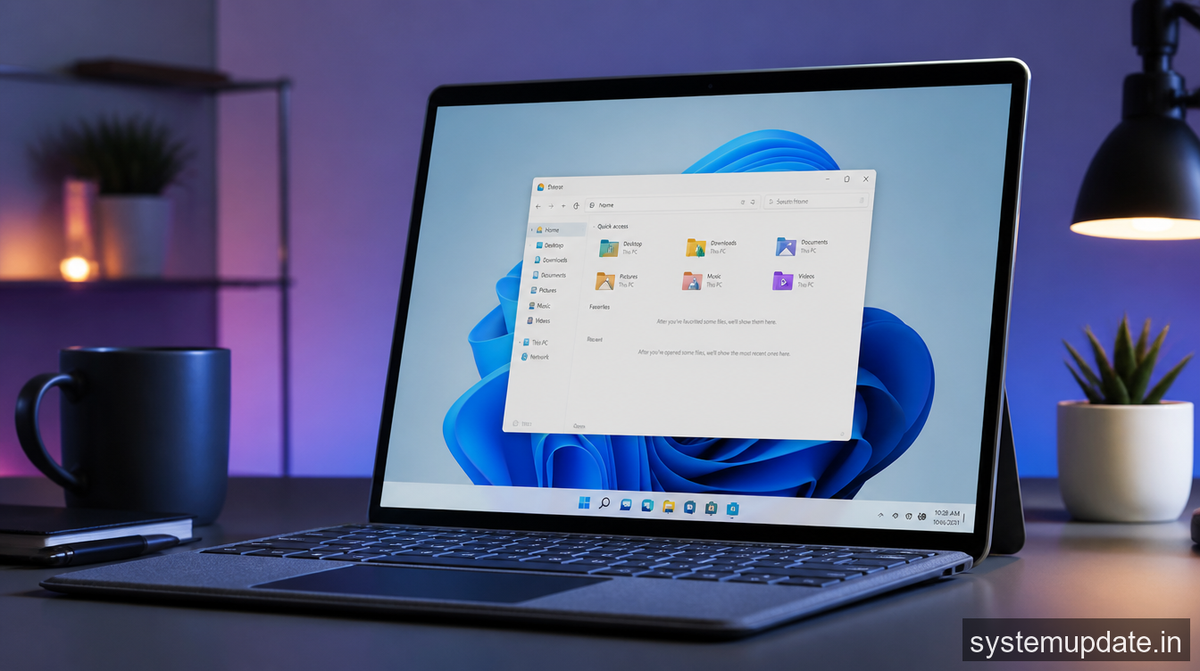
This update brings several enhancements to Windows 11, with the primary focus on performance and user interface improvements. The optimization of CPU power utilization is a significant under-the-hood change that affects not just File Explorer but the overall system responsiveness. For users, this means faster app launches, smoother animations, and a more efficient computing experience. Furthermore, the update includes improvements to the Windows 11 interface, ensuring that the operating system looks and feels modern and intuitive. While specific details on all the new features are still emerging, it’s clear that Microsoft is committed to continuously refining and enhancing Windows 11 based on user feedback and technological advancements.
One of the key aspects of this update is how it addresses user concerns about system performance. By streamlining the way Windows 11 operates, Microsoft aims to provide a seamless experience, whether users are working, gaming, or simply browsing the internet. This approach demonstrates Microsoft’s ongoing effort to make Windows 11 the best operating system for a wide range of activities and user preferences. The inclusion of dark mode fixes is also a significant update, as it caters to users who prefer this visual theme, ensuring that their experience is not marred by inconsistencies or bugs.
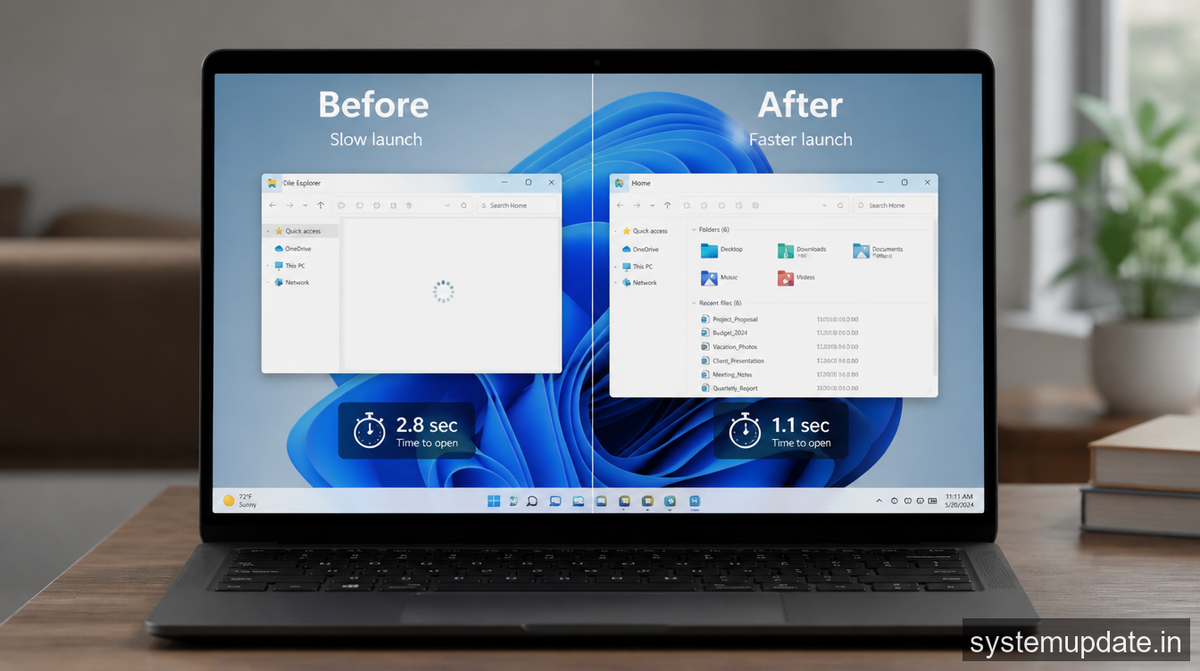
The update also underscores Microsoft’s commitment to regularly updating and improving Windows 11. This ongoing support is crucial for maintaining the security, stability, and performance of the operating system. By continuously monitoring user feedback and system metrics, Microsoft can identify areas for improvement and address them in a timely manner, which is essential for keeping Windows 11 competitive and appealing to both new and existing users. This proactive approach to updates and improvements helps in building trust with the user community, who can rely on Microsoft to provide a high-quality operating system that meets their evolving needs.
What’s fixed
This update includes several fixes for issues that users have been experiencing with Windows 11. One of the most notable fixes is the reduction in the frequency of explorer.exe crashes. These crashes could be frustrating and sometimes resulted in loss of work or other inconveniences. By addressing this issue, Microsoft has made Windows 11 more stable and reliable, which is a significant improvement for user productivity and satisfaction. Additionally, the fix for dark mode in File Explorer ensures that users who prefer this visual theme can enjoy a consistent and immersive experience without encountering bugs or glitches.
The update also addresses various other bugs and issues that have been reported by users. While the exact list of fixes is detailed in the official Microsoft changelog, it’s clear that the company has taken a comprehensive approach to resolving problems and enhancing the overall quality of Windows 11. This commitment to fixing issues and improving the user experience is vital for maintaining user trust and satisfaction. By proactively addressing problems, Microsoft demonstrates its dedication to providing a high-quality operating system that meets the needs and expectations of its users.
What this means for you
For users in India and the US, this update means a faster and more reliable Windows 11 experience. The improved launch speed of File Explorer and the overall system optimization will be noticeable, especially for those who frequently use their computers for work, study, or entertainment. In terms of data download size, the update is around 500MB, which is relatively modest considering the improvements it brings. For users on mobile data plans, such as those with Jio or Airtel in India, it’s advisable to download the update over a Wi-Fi connection to avoid unnecessary data charges. In the US, users with Comcast, AT&T, or Verizon can also consider downloading the update over Wi-Fi to save on their data plans.
The rollout timing of the update may vary depending on the region and the specific device being used. Microsoft typically rolls out updates in phases to ensure that any potential issues can be identified and addressed quickly. Users can check for the update by going to Settings > Update & Security > Windows Update, and then clicking on “Check for updates.” If the update is available for their device, they can download and install it directly from this screen. It’s always a good idea to back up important files before installing any update, as a precautionary measure.
How to get this update
To get this update, users should first ensure that their device is connected to the internet. Then, they can follow these steps: Go to Settings, click on “Update & Security,” and then select “Windows Update.” Click on “Check for updates” to see if the latest update is available for their device. If it is, they can click on “Download and install” to begin the installation process. It’s recommended to install the update as soon as possible to take advantage of the improvements and fixes it offers. However, users who are concerned about potential issues can wait for a few days to see if any significant problems are reported by other users.
The manual download option for the update is not typically recommended unless users are experiencing specific issues with the automatic update process. Microsoft’s update system is designed to handle the installation process smoothly and efficiently, and manually downloading updates can sometimes lead to complications if not done correctly. However, for advanced users or those in controlled environments, such as IT administrators, Microsoft does provide options for manual update management through tools like the Microsoft Update Catalog.
Known issues (if any)
As of the last update, there have been no widely reported significant issues with this update. However, as with any software update, it’s possible that some users may experience unforeseen problems. Microsoft continuously monitors user feedback and system metrics to quickly identify and address any issues that arise. Users who encounter any problems after installing the update are encouraged to report them to Microsoft through the Feedback Hub or other official channels. This helps Microsoft to pinpoint and fix issues promptly, ensuring that Windows 11 remains stable and secure for all users.
Frequently asked questions
What is the size of the update?
The update is around 500MB in size, although this can vary slightly depending on the specific device and the current state of the operating system.
How long does the update take to install?
The installation time for the update can vary depending on the speed of the user’s internet connection and the specifications of their device. Generally, the update should take between 15 minutes to an hour to download and install, depending on these factors.
Do I need to back up my files before installing the update?
While Microsoft’s update process is designed to be safe and non-destructive, it’s always a good idea to back up important files before installing any update. This is a precautionary measure to ensure that, in the unlikely event of an issue, users can easily restore their files.
Can I uninstall the update if I encounter problems?
Yes, users can uninstall the update if they encounter significant problems. However, this should be a last resort, as updates often include important security patches and feature improvements. Before uninstalling, users should try to troubleshoot the issue or seek help from Microsoft support.
Is the update available for all Windows 11 devices?
The update is available for all devices running Windows 11, although the rollout may be staggered to ensure a smooth delivery process. Users can check for the update in their device’s Settings app to see if it’s available for their device.
Final thoughts
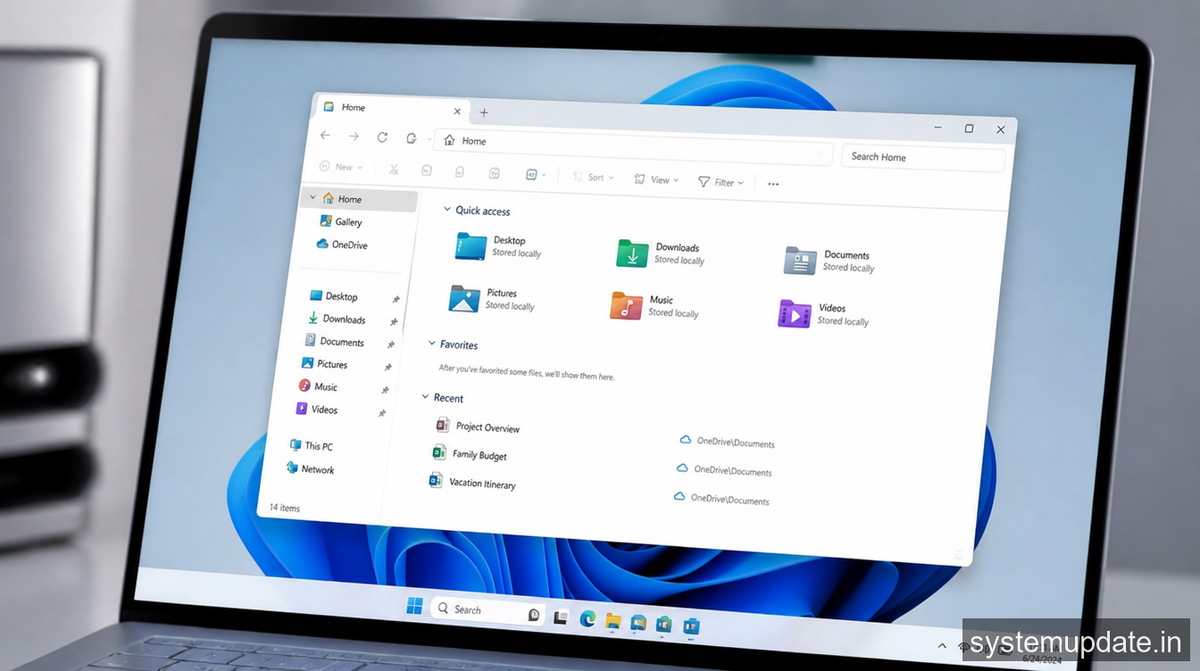
In conclusion, the update that boosts File Explorer launch speed in Windows 11 is a significant improvement for users. With its focus on performance, stability, and user experience, this update demonstrates Microsoft’s ongoing commitment to making Windows 11 the best operating system for a wide range of users. Given the benefits it offers, including faster app launches and a more reliable system, users are recommended to install the update as soon as possible. However, as with any update, it’s crucial to be aware of the potential for unforeseen issues and to report any problems to Microsoft to help ensure the continued quality and stability of Windows 11.