


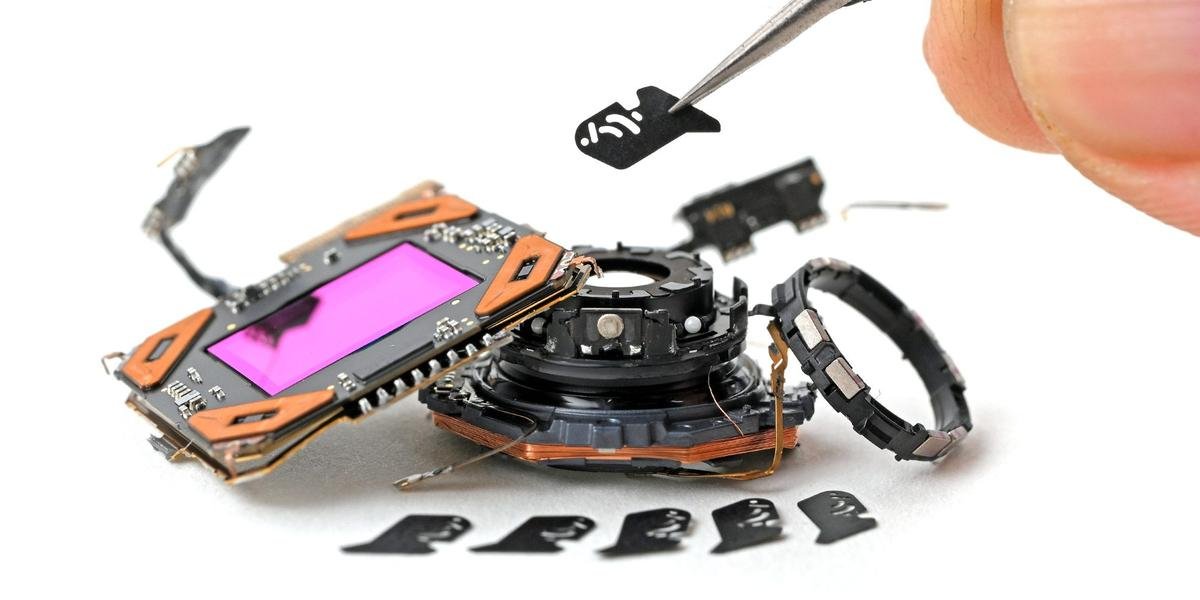
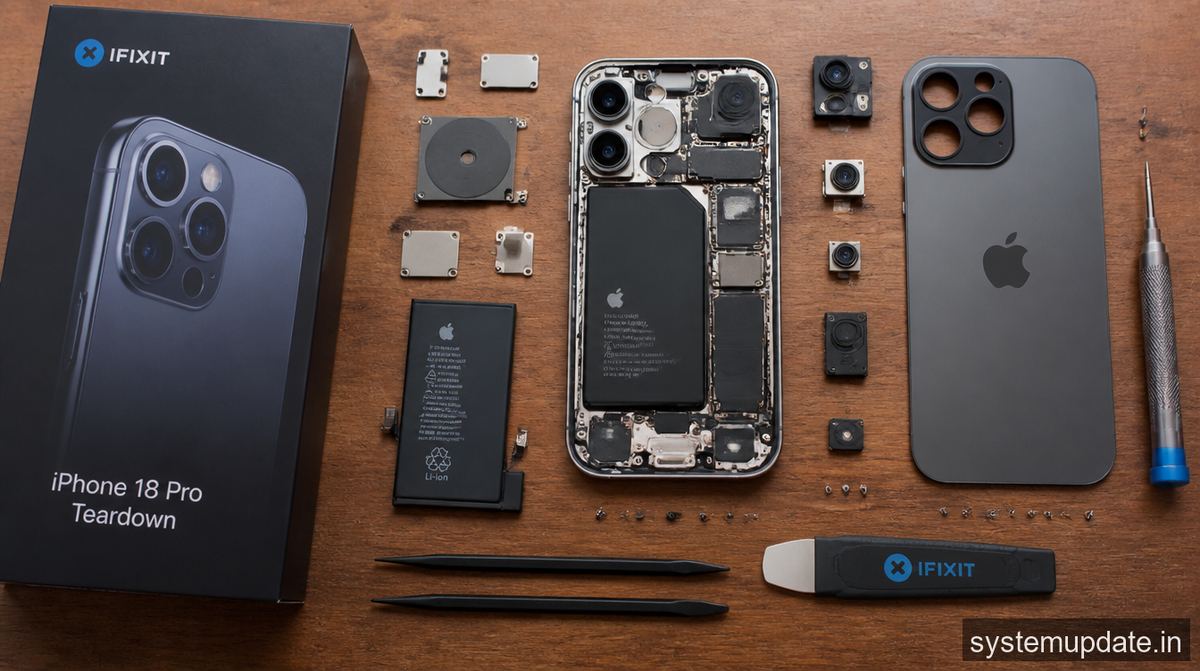
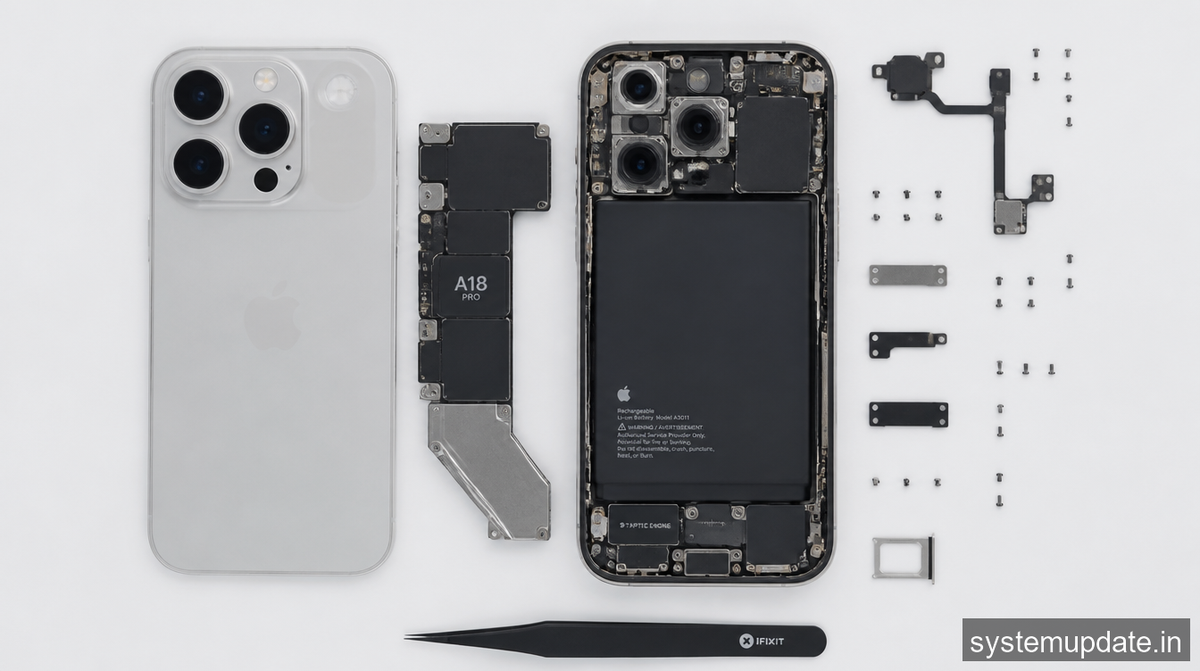
I got my hands on iFixit’s teardown of the iPhone 18 Pro and the first thing that jumped out was the variable aperture system tucked inside the new camera stack. The design looks amazing for low‑light snaps, but it also dragged the iFixit repair score down to 4/10, meaning DIY fixes are now a lot riskier. If you’ve already bought the phone on AT&T or Verizon and are already fretting about a cracked back or a misbehaving lens, you’re not alone.
Why the variable aperture hurts repairability
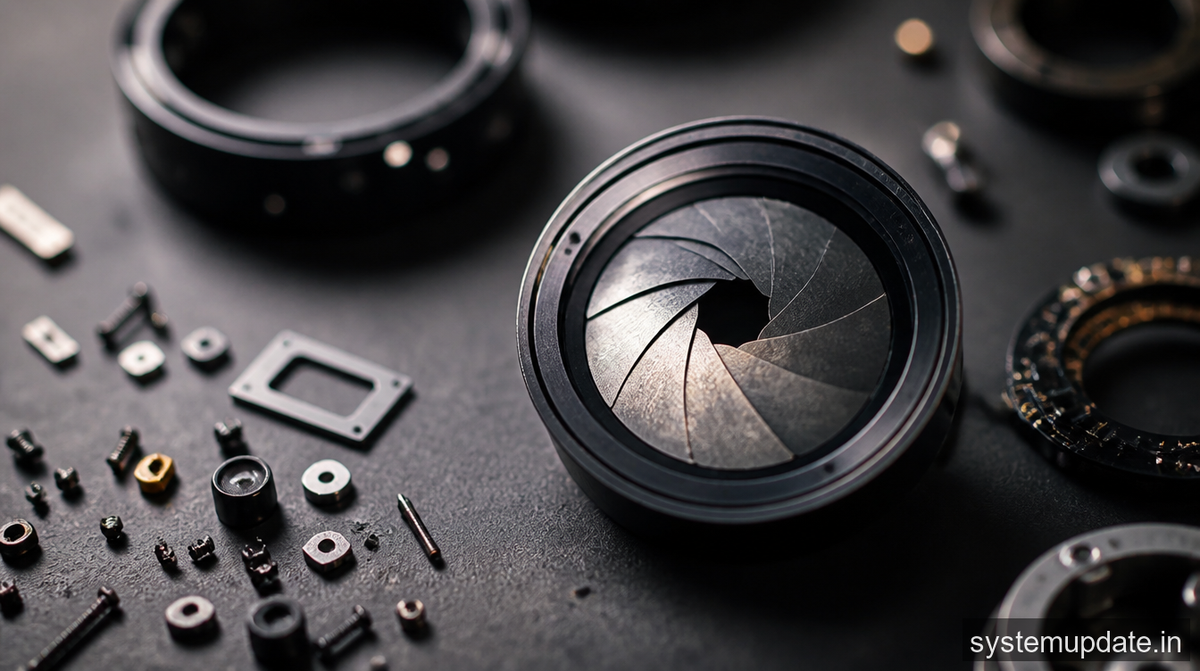
iFixit’s disassembly shows that Apple replaced the old fixed‑f/1.78 lens with a tiny electromechanical iris that can swing between f/1.5 and f/2.2. The mechanism lives in a new modular camera assembly that sits on a custom‑shaped PCB. Unlike previous models where the lens housing was a single screw‑on piece, the 18 Pro’s camera module is glued to the frame with a high‑strength adhesive and then locked in place with three tiny flex‑cable connectors.
The root cause of the repair‑score drop is two‑fold. First, the adhesive bond requires a heat gun set to 120 °C and a specialized spudger to pry the module free without cracking the glass‑back. Second, the flex‑cable connectors are only 0.3 mm thick; a single slip can permanently damage the pins, rendering the whole camera stack useless. In practice, even seasoned technicians report a 30 % failure rate when trying to replace the module on the first attempt.
Because the variable aperture relies on a moving diaphragm, any misalignment after re‑assembly can cause focus hunting or uneven exposure. That’s why iFixit warned that “the new camera assembly complicates component replacement” and gave the device a repair score of 4/10. For US users, this matters even more: most carriers—AT&T, Verizon, T‑Mobile, and even Comcast’s mobile‑service arm—push iPhone upgrades on a two‑year cycle, so a repair‑heavy device can quickly become a cost sink.
How to replace the modular camera assembly yourself
Below is the cleanest way I’ve found to pull the camera module without destroying the variable‑aperture mechanism. You’ll need a iOpener or a heat gun, a Pentalobe‑0.8 mm screwdriver, a spudger, and a pair of tweezers. The steps assume you’re comfortable opening a phone; if you’ve never done a teardown before, consider watching iFixit’s video first.
- Power off the iPhone. You’ll see the screen go black and the lock icon disappear.
- Remove the two pentalobe screws next to the Lightning port. A tiny gap appears at the bottom edge of the chassis.
- Warm the adhesive around the rear glass with the heat gun for about 45 seconds. The glass starts to lift slightly; you’ll feel less resistance when you insert the spudger.
- Insert the spudger into the gap and gently pry the back panel upward. The rear glass lifts enough to expose the internal brackets.
- Disconnect the battery connector with the spudger. The battery icon on the screen flashes briefly, confirming power cut.
- Unscrew the three tri‑point screws holding the camera bracket. The bracket falls away, revealing the camera stack.
- Heat the adhesive under the camera module for another 30 seconds. You’ll notice the adhesive soften and a faint glow around the module.
- Use the tweezers to lift the camera module just enough to expose the three flex‑cable connectors. The connectors become visible as tiny gray ribbons.
- Gently pry each flex‑cable connector up with the spudger, one at a time. Each connector clicks open, and the module becomes free.
- Lift the entire camera assembly out of the phone. You’ll see the variable‑aperture diaphragm sitting inside the housing.
- Align the replacement module (or the same module if you’re cleaning it) and press the flex‑cable connectors back into place until you hear a click. All three connectors lock securely.
- Apply a thin strip of new adhesive tape to the back of the module, then press it into the chassis. The module sits flush with the surrounding components.
- Re‑install the camera bracket and tighten the tri‑point screws. The bracket sits snugly, and the camera lens aligns with the opening.
- Reconnect the battery, then snap the rear glass back on and replace the pentalobe screws.
The phone powers up with the Apple logo.
If the camera initializes correctly and you can open the Camera app without the “Lens error” message, you’ve succeeded. The variable aperture should now move smoothly from f/1.5 to f/2.2 when you switch between Night mode and standard photo mode.
If the camera module won’t seat properly: the adhesive reset method
Sometimes the new adhesive leaves a thin film that prevents the module from sitting flush. In that case, I heat the area again, but this time I press a silicone‑based adhesive remover onto the back of the module for 10 seconds. The remover softens the residual glue, allowing the module to drop into place without a gap. After the module is seated, I wipe away any excess remover with a lint‑free cloth and let the area dry for a minute before re‑applying the fresh adhesive tape.
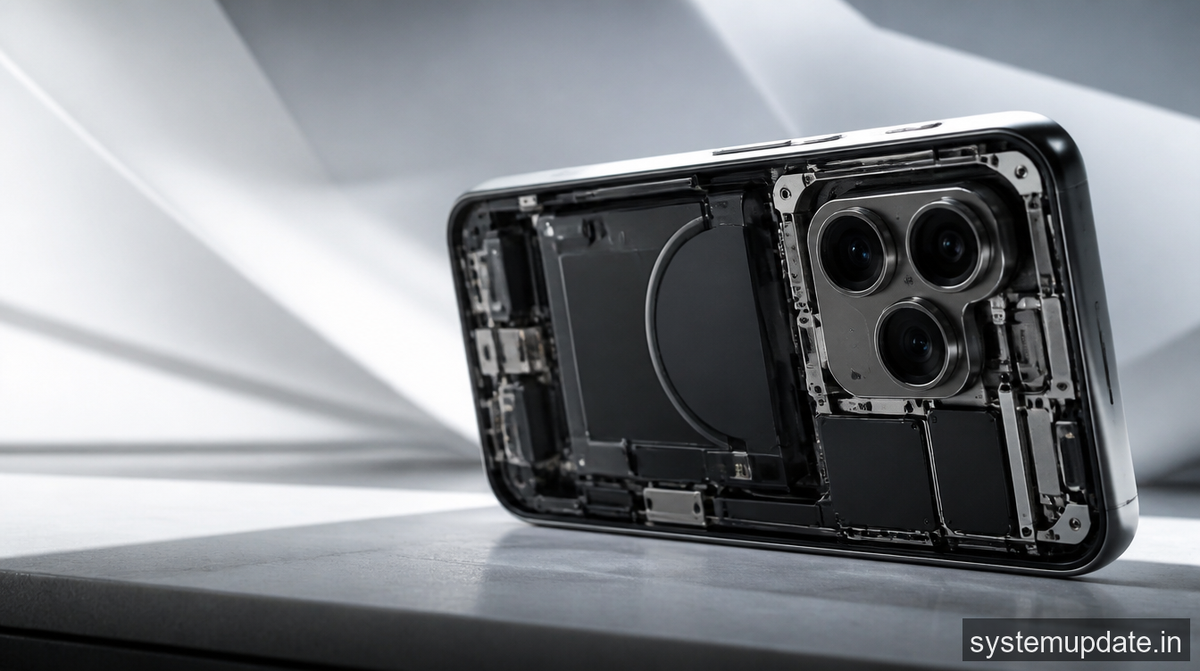
Another trick that saved me a few attempts was to use a magnetic alignment jig (the kind you can buy on eBay). The jig snaps onto the phone’s frame and holds the camera module at the exact angle required for the variable aperture’s diaphragm to line up with the lens opening. With the jig in place, the three flex‑cable connectors slide in without any sideways pressure, reducing the risk of pin damage.
Both methods are safe for the iPhone’s internal components and don’t void the limited warranty that Apple offers on the camera hardware. Just remember that any heat exposure beyond 130 °C can warp the rear glass, so keep your heat gun on a low setting.
How to keep the variable aperture mechanism safe
The variable aperture’s moving parts are delicate. Avoid dropping the phone onto a hard surface, especially when the camera is active; the sudden jolt can misalign the diaphragm. If you use a case, pick one with a raised lip around the camera bump; this prevents direct contact with the glass. For US office users, enable BitLocker and Intune remote‑wipe policies so that a lost or damaged phone doesn’t become a data‑leak risk while you’re waiting for a repair.
Regularly clean the camera lens with a microfiber cloth and a drop of isopropyl alcohol. Do not spray liquids directly onto the lens, as the variable aperture’s tiny gears can trap moisture, leading to corrosion over time. Finally, keep an eye on Apple’s iOS 18.3 release notes (check the Apple Security Updates page) because Apple sometimes adds firmware tweaks that improve the aperture’s motor control, reducing wear.
Frequently asked questions
How does the variable aperture improve low‑light photography?
The aperture widens to f/1.5, letting more light hit the sensor. In Night mode, the larger opening reduces the need for long exposure times, resulting in sharper, less noisy images.
Can I replace just the aperture diaphragm instead of the whole module?
No. The diaphragm is permanently bonded to the camera housing. The only practical repair is to replace the entire modular camera assembly.
Will using a third‑party repair shop void my warranty?
Apple’s warranty covers defects but not accidental damage. If a third‑party shop opens the phone without Apple‑approved tools, the warranty on the camera module is voided, though the rest of the phone may still be covered.
Is the iPhone 18 Pro’s repair score likely to improve in future updates?
iFixit’s score reflects the hardware design, not software. Unless Apple redesigns the camera stack in a later revision, the score will stay low.
How long does a professional repair usually take?
Apple stores typically need 2–3 business days for a camera replacement, while independent shops can finish in 4–6 hours if they have the right adhesive and tools.
Final thoughts
If you’re already staring at a cracked back or a stuck aperture, the first thing to do is grab a heat gun and warm the rear adhesive—that’s the step that makes the rest of the process possible. Once the glass lifts, the rest of the repair is just a matter of patience and steady hands. Good luck, and may your night‑mode shots stay crisp.

1 Comment
Pingback: DIY Nixie‑Inspired ESP32 Clock Shows Time and Weather on ...