What causes this error
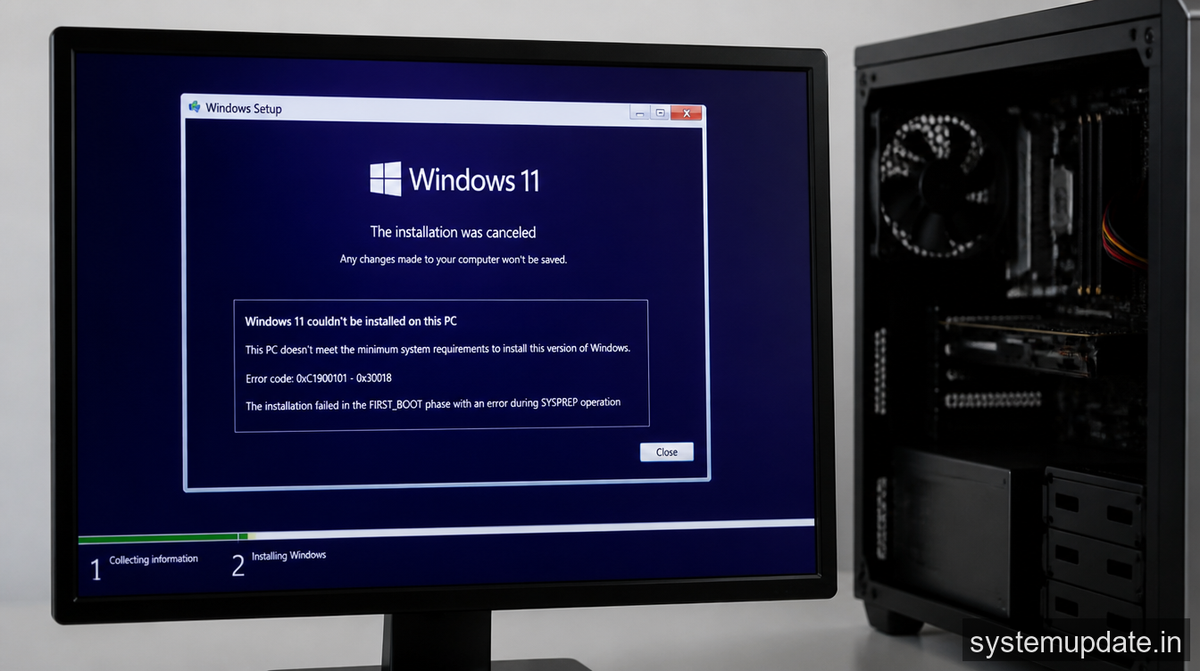
The Windows 11 installation error on older PCs is often caused by a combination of factors, including outdated hardware, corrupted system files, or incompatible drivers. When you try to install Windows 11 on an older PC, the installation process may fail due to the lack of support for certain hardware components or the presence of corrupted files. For example, if your PC’s BIOS is outdated, it may not be able to support the new features of Windows 11, leading to installation errors. Similarly, if your system files are corrupted, the installation process may fail or produce errors.
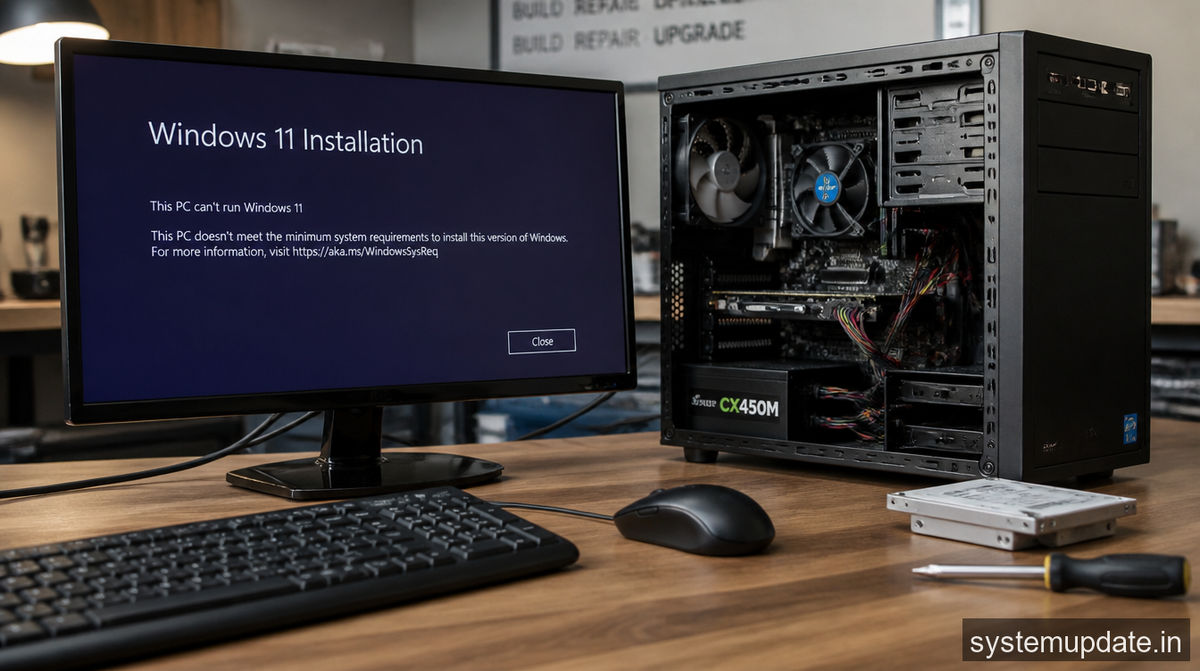
The root cause of the error is often related to the system’s inability to properly read or write files during the installation process. This can be due to a variety of reasons, including a faulty hard drive, a corrupted system registry, or a conflict with other software installed on the PC. To fix the error, you’ll need to identify the underlying cause and take steps to address it. Common triggers for this error include failed updates, corrupt files, and driver conflicts. For instance, if you’ve recently updated your PC’s drivers and then tried to install Windows 11, you may encounter errors due to the new drivers not being compatible with the operating system.
How to fix Windows 11 installation errors on older PCs — step by step
To fix the Windows 11 installation error on your older PC, you’ll need to follow a series of steps. Before you start, make sure you have admin privileges on your PC, as you’ll need to make changes to the system files and settings. You’ll also need to backup your important files and data, as the installation process may erase all data on your PC.
- Check for updates: The first step is to check for any updates to your PC’s BIOS and drivers. Outdated BIOS and drivers can cause compatibility issues with Windows 11, leading to installation errors. You can check for updates in the Settings app, under Update & Security. Look for any available updates and install them.
- Run the Windows 11 Installation Assistant: Next, you’ll need to run the Windows 11 Installation Assistant. This tool will help you identify any issues with your PC’s hardware or software that may be preventing the installation of Windows 11. You can download the tool from the Microsoft website and follow the prompts to run it. The tool will scan your PC and provide you with a report of any issues it finds.
- Disable any conflicting software: If the Windows 11 Installation Assistant identifies any conflicting software, you’ll need to disable it. This may include antivirus software, firewall software, or other programs that may be interfering with the installation process. You can disable these programs by going to the Control Panel, clicking on Programs and Features, and then selecting the program you want to disable.
- Run the System File Checker: The System File Checker is a built-in tool in Windows that scans your system files for corruption and replaces any corrupted files it finds. To run the System File Checker, open the Command Prompt as an administrator and type
sfc /scannow. The tool will scan your system files and replace any corrupted files it finds. - Run the DISM command: The DISM command is another built-in tool in Windows that can help fix corruption issues with your system files. To run the DISM command, open the Command Prompt as an administrator and type
dism /online /cleanup-image /restorehealth. The command will scan your system files and repair any corruption it finds.
After completing these steps, you should be able to install Windows 11 on your older PC without encountering any errors. If you’re still experiencing issues, you may need to try an alternative method.
If that didn’t work — alternative method
If the above steps don’t work, you may need to try an alternative method to fix the Windows 11 installation error on your older PC. One option is to perform a clean installation of Windows 11, which will erase all data on your PC and start from scratch. To do this, you’ll need to create a bootable USB drive with the Windows 11 installation media and then boot from it. You can then follow the prompts to complete the installation process.
Another option is to try installing Windows 11 using the Media Creation Tool. This tool allows you to create a bootable USB drive or DVD with the Windows 11 installation media and then install Windows 11 from it. You can download the Media Creation Tool from the Microsoft website and follow the prompts to create the installation media.
How to prevent this from recurring
To prevent the Windows 11 installation error from recurring on your older PC, you should make sure to keep your PC’s BIOS and drivers up to date. You should also regularly run the System File Checker and DISM command to scan for corruption and replace any corrupted files. Additionally, you should avoid installing software that may conflict with Windows 11, and make sure to disable any conflicting software before installing Windows 11.
Frequently asked questions
What is the minimum system requirement for Windows 11?
The minimum system requirement for Windows 11 includes a 64-bit CPU, 4GB of RAM, and 64GB of free disk space. Your PC must also have a Trusted Platform Module (TPM) 2.0, a graphics card that supports DirectX 12, and a display that supports a resolution of at least 720p.
Can I install Windows 11 on a PC with a 32-bit CPU?
No, you cannot install Windows 11 on a PC with a 32-bit CPU. Windows 11 requires a 64-bit CPU to run.
How do I check if my PC is compatible with Windows 11?
You can check if your PC is compatible with Windows 11 by running the Windows 11 Installation Assistant. This tool will scan your PC and provide you with a report of any issues it finds.
What should I do if I encounter an error during the installation process?
If you encounter an error during the installation process, you should try restarting your PC and then retrying the installation. If the error persists, you may need to try an alternative method, such as performing a clean installation of Windows 11.
Can I upgrade from Windows 10 to Windows 11 for free?
Yes, you can upgrade from Windows 10 to Windows 11 for free, as long as your PC meets the minimum system requirements for Windows 11.
Final thoughts
If you’re experiencing Windows 11 installation errors on your older PC, don’t panic. By following the steps outlined in this article, you should be able to fix the error and successfully install Windows 11. Remember to always backup your important files and data before attempting to install Windows 11, and make sure to keep your PC’s BIOS and drivers up to date to prevent the error from recurring. If you’re still experiencing issues, you may need to try an alternative method, such as performing a clean installation of Windows 11.
TITLE: How to Fix Windows 11 Installation Errors on Older PCs 2026 META_TITLE: Fix Windows 11 Installation Errors on Older PCs | System Update India META_DESC: Learn how to fix Windows 11 installation errors on older PCs with our step-by-step guide. Get tips on troubleshooting and resolving common issues. SLUG: fix-windows-11-installation-errors-older-pcs TAGS: Windows 11, installation errors, older PCs, troubleshooting, fix errors