


What causes this error
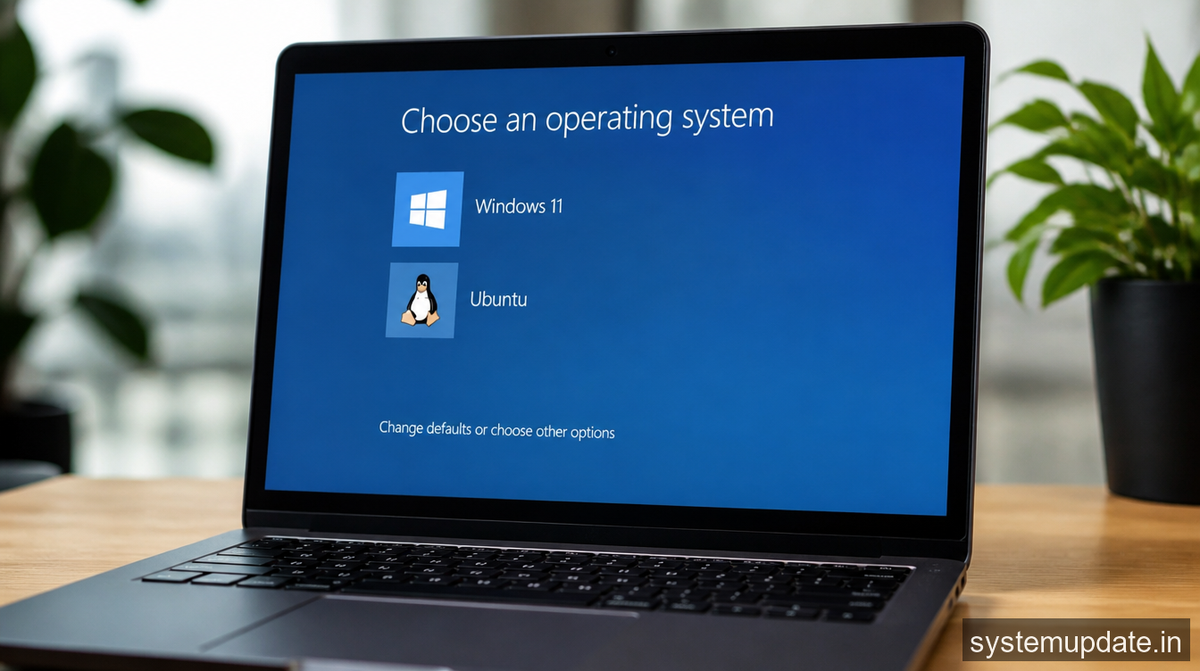
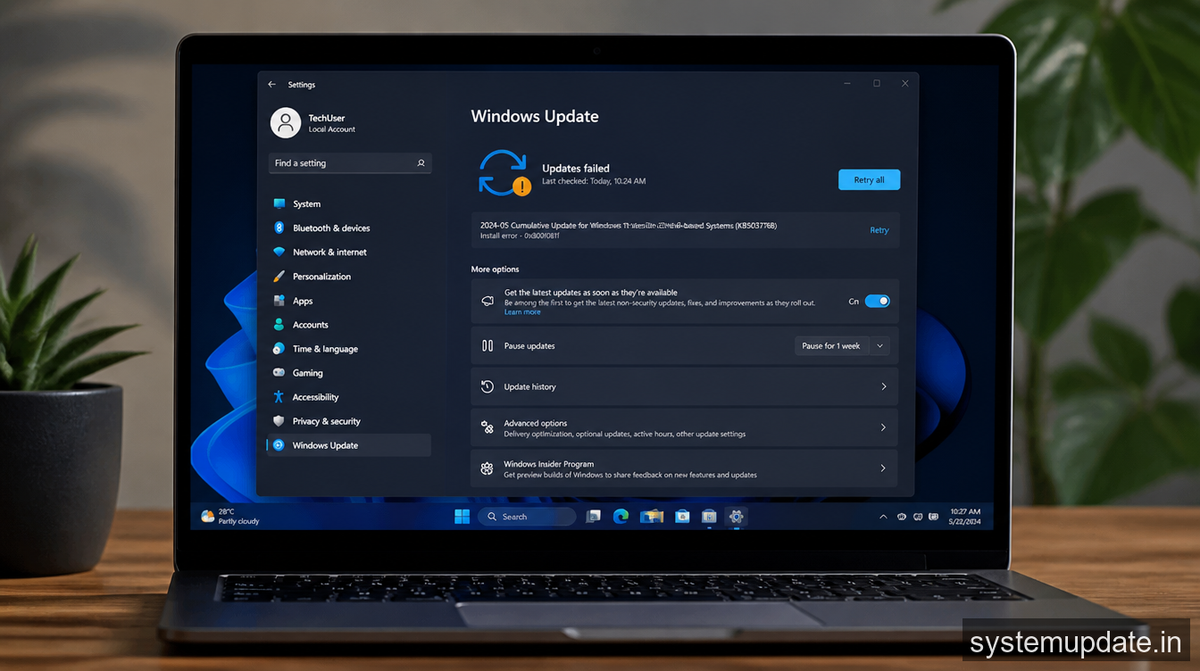
The root cause of this issue lies in the way Windows 11 handles dual-boot configurations. When you dual-boot Windows 11 with another operating system, the boot loader and system files can get mixed up, leading to conflicts during the update process. A corrupt system file or a driver conflict can also trigger this error. For instance, if you’ve recently installed a new driver or software, it might be interfering with the update process. I’ve found that a failed update can also leave behind corrupted files, which can cause this error.
In my experience, the most common triggers for this error are a failed update, a corrupt system file, or a driver conflict. To identify the cause, you’ll need to check the event logs and system files. You can do this by opening the Event Viewer (eventvwr.msc) and looking for errors related to the update process. You can also check the system files for any corruption by running the System File Checker (sfc /scannow) tool.
How to fix Windows 11 update problems on dual-boot devices — step by step
To fix this issue, you’ll need to take a few steps. First, ensure you have admin privileges, as you’ll need to make changes to system files and settings.
- Disable the dual-boot timeout: Open the Command Prompt as an administrator (
right-click on Start > Command Prompt (Admin)), and typebcdedit /timeout 10to set the boot timeout to 10 seconds. This will give you enough time to select the correct operating system during boot.
After running this command, you’ll see a confirmation message indicating that the timeout has been set.
- Run the System File Checker: In the same Command Prompt window, type
sfc /scannowto scan and replace any corrupted system files.
This process may take a few minutes to complete. You’ll see a progress bar indicating the scan’s progress.
- Run the DISM tool: Type
dism /online /cleanup-image /restorehealthto repair any corrupted system files and registry keys.
This process may also take a few minutes to complete. You’ll see a progress bar indicating the repair’s progress.
- Update the boot configuration: Type
bcdedit /set {default} device partition=C:to update the boot configuration and ensure that Windows 11 is set as the default operating system.
After running this command, you’ll see a confirmation message indicating that the boot configuration has been updated.
- Restart and try the update again: Restart your computer and try to update Windows 11 again. You should now be able to complete the update process without any errors.
If the update process is successful, you’ll see a confirmation message indicating that the update has been installed.
After completing these steps, you should be able to fix the Windows 11 update problems on your dual-boot device. If you’re still experiencing issues, you can try the alternative method below.
If that didn’t work — alternative method
If the above steps didn’t work, you can try resetting the Windows Update components. This will remove any corrupted files and settings that might be causing the issue. To do this, open the Command Prompt as an administrator and type net stop wuauserv followed by net stop cryptSvc and net stop bits. Then, type ren C:\Windows\SoftwareDistribution SoftwareDistribution.old and ren C:\Windows\System32\catroot2 catroot2.old to rename the SoftwareDistribution and catroot2 folders. Finally, type net start wuauserv followed by net start cryptSvc and net start bits to restart the Windows Update services. After completing these steps, try to update Windows 11 again.
Preventing this from recurring
To prevent this issue from recurring, make sure to regularly update your drivers and software. You can use the Device Manager (devmgmt.msc) to check for updates and install the latest drivers. Additionally, ensure that your system files and registry keys are clean and free of corruption by running the System File Checker and DISM tool regularly.
Frequently asked questions
What is the cause of the Windows 11 update error on dual-boot devices?
The cause of this error is often a conflict between the boot loader and system files, or a corrupt system file or driver conflict.
How do I know if I have a dual-boot configuration?
If you have two or more operating systems installed on your computer, you have a dual-boot configuration.
Can I fix this issue without resetting the Windows Update components?
Yes, you can try the steps outlined in the “How to fix” section above. If those steps don’t work, you can try resetting the Windows Update components as an alternative method.
Will this fix work for both Indian and US users?
Yes, this fix should work for both Indian and US users, as the issue is related to the Windows 11 update process and not specific to any region.
What if I’m still experiencing issues after trying the above steps?
If you’re still experiencing issues, you can try seeking help from Microsoft support or a professional technician.
Final thoughts
If you’re experiencing Windows 11 update problems on your dual-boot device, try the steps outlined in this article. Start by disabling the dual-boot timeout, running the System File Checker, and updating the boot configuration. If those steps don’t work, you can try resetting the Windows Update components as an alternative method. Remember to always back up your data before making any changes to your system files and settings. By following these steps, you should be able to fix the issue and keep your Windows 11 installation up to date.
