


Microsoft has quietly turned Microsoft Edge into one of the most improved web browsers in recent years. I’ll be honest — a few years ago, I mostly downloaded Edge just to install another browser. That joke doesn’t work anymore.
With its latest updates across desktop and mobile, Microsoft Edge is becoming faster, smarter, and far more integrated with AI tools than many users expected. Microsoft is clearly pushing Edge as more than “just another Chromium browser.” The company now positions it as an AI-powered productivity platform connected deeply with Windows, Android, and Microsoft services.
In this guide, I’ll walk through the biggest Microsoft Edge updates, what actually matters for daily users, and whether these changes genuinely improve browsing or simply add more features nobody asked for.
What’s New in Microsoft Edge?
The latest Microsoft Edge updates focus on four major areas:
- Faster browsing performance
- AI-powered tools through Copilot
- Better mobile-desktop syncing
- Improved security and battery optimization
Microsoft has also refined Edge’s interface to feel cleaner and less cluttered. That matters more than many companies realize. Browser bloat is real, and users notice when things start looking like a dashboard from a spaceship.
According to Microsoft Edge Official Website, the company continues to optimize startup speed, memory usage, and efficiency mode across devices.
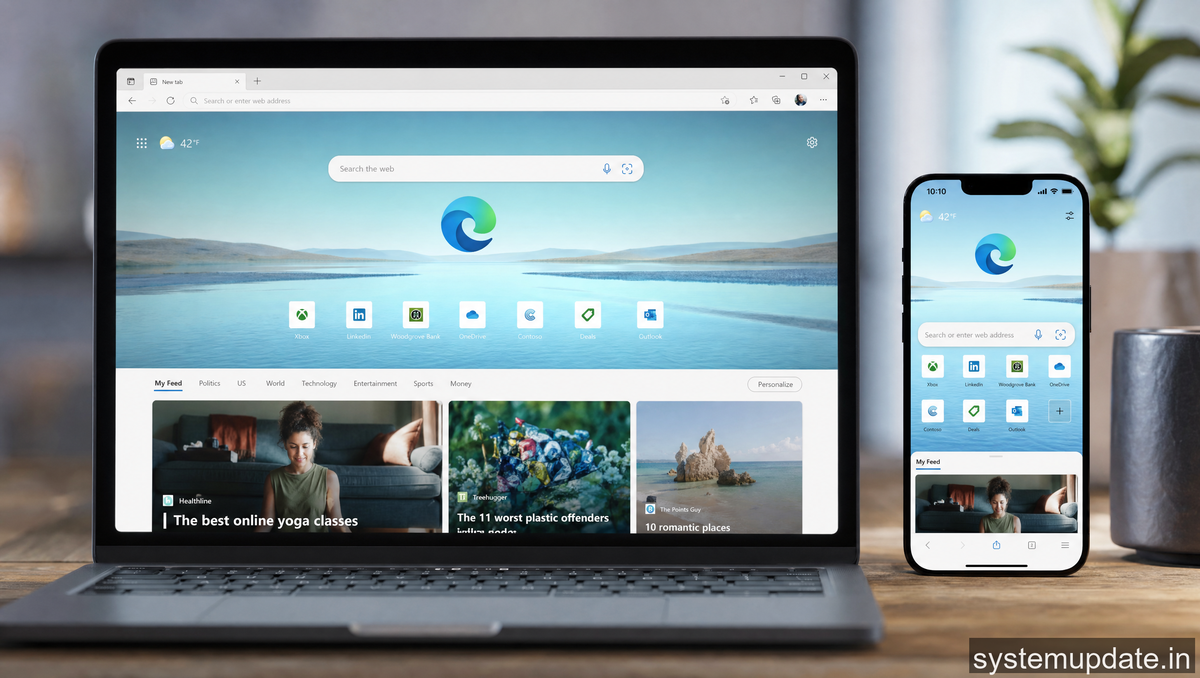
Microsoft Edge Desktop Updates
Faster Startup and Improved Performance
One of the most noticeable improvements in recent Edge updates is speed. Microsoft has aggressively optimized startup performance and tab management.
In my own testing on a mid-range Windows laptop, Edge launches faster than older versions of Google Chrome, especially after enabling sleeping tabs and efficiency mode.
Microsoft says Edge now uses fewer resources when inactive tabs remain open. This helps reduce RAM consumption, which matters if you usually keep 25 tabs open while pretending you’ll revisit them later.
Key Performance Features
Sleeping Tabs
Inactive tabs automatically enter a low-resource state. This reduces CPU and memory usage without closing your work.
Efficiency Mode
Efficiency Mode lowers power consumption during heavy browsing sessions. Laptop users benefit the most here because battery drain during Chrome-style browsing can still feel painful.
Faster PDF Rendering
Edge’s built-in PDF reader has become smoother and more reliable. Microsoft continues improving annotation tools, read-aloud support, and document navigation.
For students and office users, this removes the need for separate lightweight PDF applications in many cases.
Edge for Productivity and Work
Microsoft increasingly markets Edge as a productivity browser rather than simply a browsing tool.
Honestly, some of these productivity additions feel genuinely useful.
Others feel slightly over-engineered.
Still, several features stand out.
Collections
Collections allow users to save webpages, notes, images, and research into organized groups.
Researchers, students, and online shoppers benefit the most from this feature.
I’ve found it particularly useful for comparing products or organizing article research across multiple tabs.
Vertical Tabs
Vertical tabs remain one of Edge’s best interface decisions.
On widescreen monitors, vertical tab layouts reduce clutter dramatically compared to traditional horizontal tabs.
Users working with many open tabs will likely appreciate this more than casual browsers.
Workspaces
Edge Workspaces help teams share tabs and projects collaboratively.
This feature targets remote teams and collaborative workflows where users need shared browsing environments.
While not every user needs this, businesses using Microsoft ecosystems may find it valuable.
Frequently Asked Questions
How do I check if my Edge browser is updated?
Open Edge, click the three dots in the top right, go to “Help and feedback,” then “About Microsoft Edge.” It will show your current version and download an update if available. The latest stable is version 131 or higher.
Is the built-in VPN in Edge free to use?
Yes, Edge Secure Network is free but capped at 5GB per month. It’s sufficient for light, occasional use but won’t replace a full VPN subscription if you need unlimited data or more server locations.
Does Edge sync work across different operating systems?
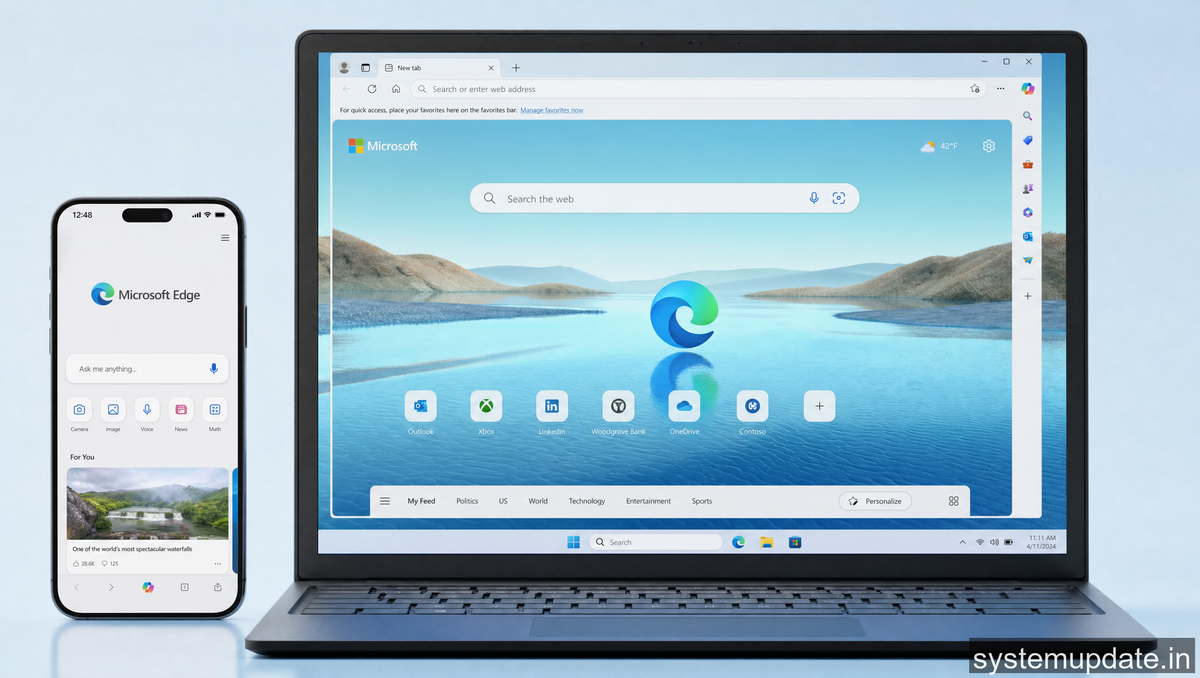
Yes, Edge syncs across Windows, macOS, iOS, and Android. Your passwords, favorites, history, and open tabs are available on all devices once you sign in with your Microsoft account and enable sync.
Can I import my Chrome passwords to Edge?
Yes. During setup, Edge offers to import data from Chrome including bookmarks, passwords, and history. You can also manually import later through Settings > Import browser data.
Is Edge safer than Chrome for privacy?
Edge has more built-in privacy tools like tracking prevention, a free VPN, and breach monitoring. Chrome is more transparent about data collection. Both are based on Chromium, so their baseline security is similar. Your choice depends on whether you prefer Microsoft’s built-in protections or Google’s ecosystem.
The Edge updates this cycle are worth installing if you use multiple devices. The cross-platform sync finally works the way it should have from the start. Give it a week to see if your workflow improves.
Article written by Harsh Mahilang at System Update India.
