


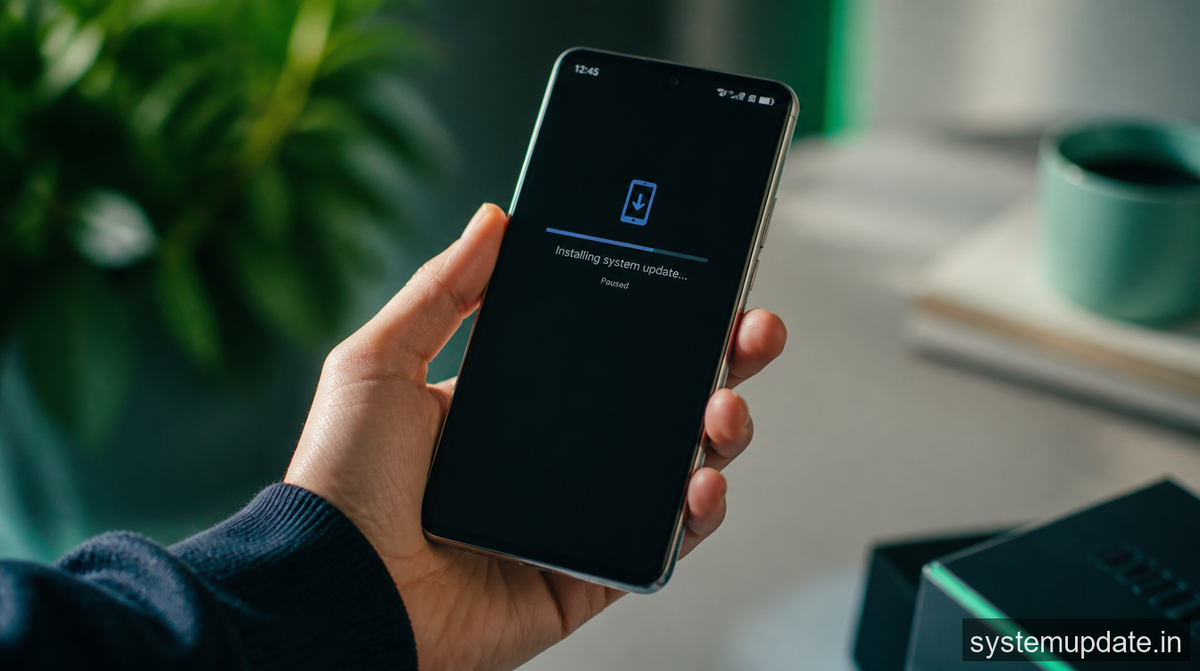
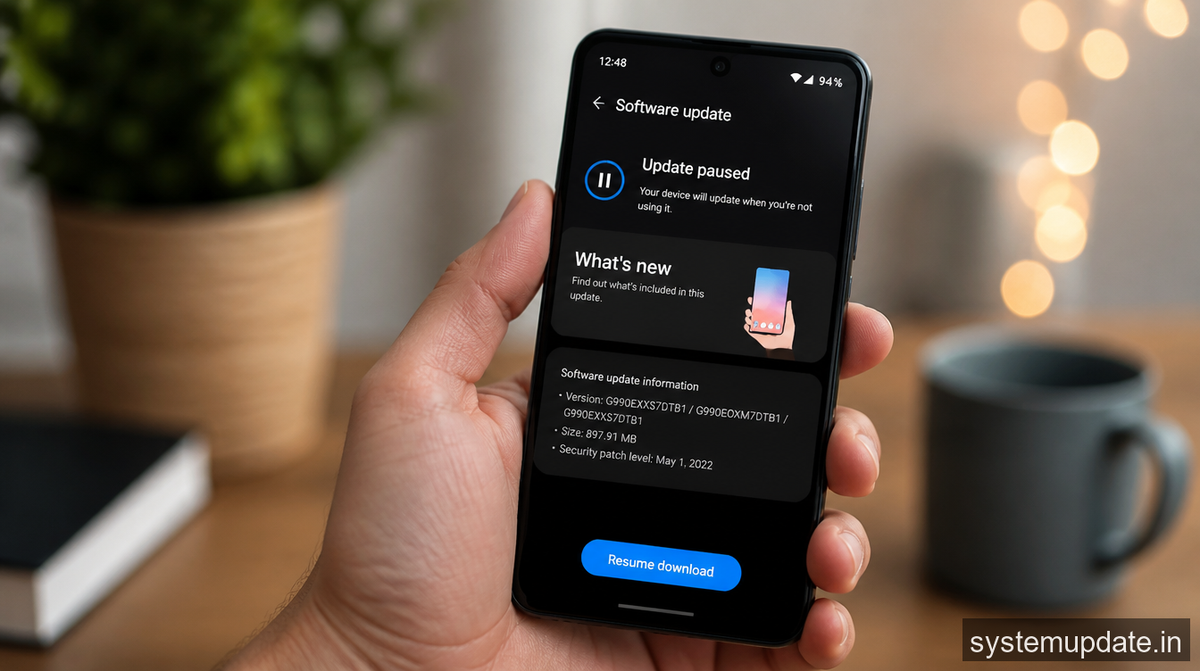
The “software update paused” error typically occurs due to issues with the update package itself, corrupt system files, or conflicts with other apps. In some cases, a failed update attempt can leave behind incomplete files, causing the update process to stall. For instance, if you’re using a device from brands like Samsung, Xiaomi, or Google, the update process might be paused due to a mismatch between the device’s current software version and the new update. Additionally, if you’re on a limited data plan with providers like Jio or Airtel in India, or Verizon and AT&T in the US, you might want to consider updating your device over a Wi-Fi network to avoid excessive data charges.
When an update is paused, it can be due to a variety of reasons, including but not limited to:
- Corrupt system files that prevent the update from proceeding
- Incompatible apps that interfere with the update process
- Insufficient storage space on the device
- Network connectivity issues that disrupt the update download
Understanding the root cause of the issue is essential to resolving it effectively.
How to Fix Software Update Paused on Android — Step by Step
To fix the “software update paused” error, follow these steps carefully. Ensure you have a stable internet connection and sufficient battery life before proceeding.
- Check for Sufficient Storage Space: Ensure your device has enough free space to download and install the update. You can check your storage space by going to
Settings>Storage. If your device is running low on space, consider deleting unused apps, photos, or videos to free up some space. For example, you can use apps like PhonePe or Paytm to manage your storage and delete unnecessary files. - Restart Your Device: Sometimes, a simple reboot can resolve the issue. Press and hold the power button until your device restarts. This will close all running apps and may resolve any temporary software glitches.
- Check for Update Again: After restarting, go to
Settings>System>System Updateand check for updates again. If the update is available, download and install it. Make sure you’re connected to a stable Wi-Fi network to avoid any disruptions during the update process. - Clear Cache and Data of the Software Update App: Go to
Settings>Apps>All Apps>Software Update(or similar), then tapStorage>Clear CacheandClear Data. This will remove any temporary files that might be causing the issue. Be cautious when clearing data, as this will remove any saved preferences or settings within the app. - Disable Apps That May Interfere with the Update: Some apps, especially those related to system customization or security, might interfere with the update process. Try disabling or uninstalling such apps temporarily and then check for updates again. For instance, if you have apps like BSNL or Jio Cinema installed, you might want to disable them before updating your device.
After completing these steps, your device should be able to download and install the update successfully. If the issue persists, proceed to the alternative method below.
If That Didn’t Work — Alternative Method
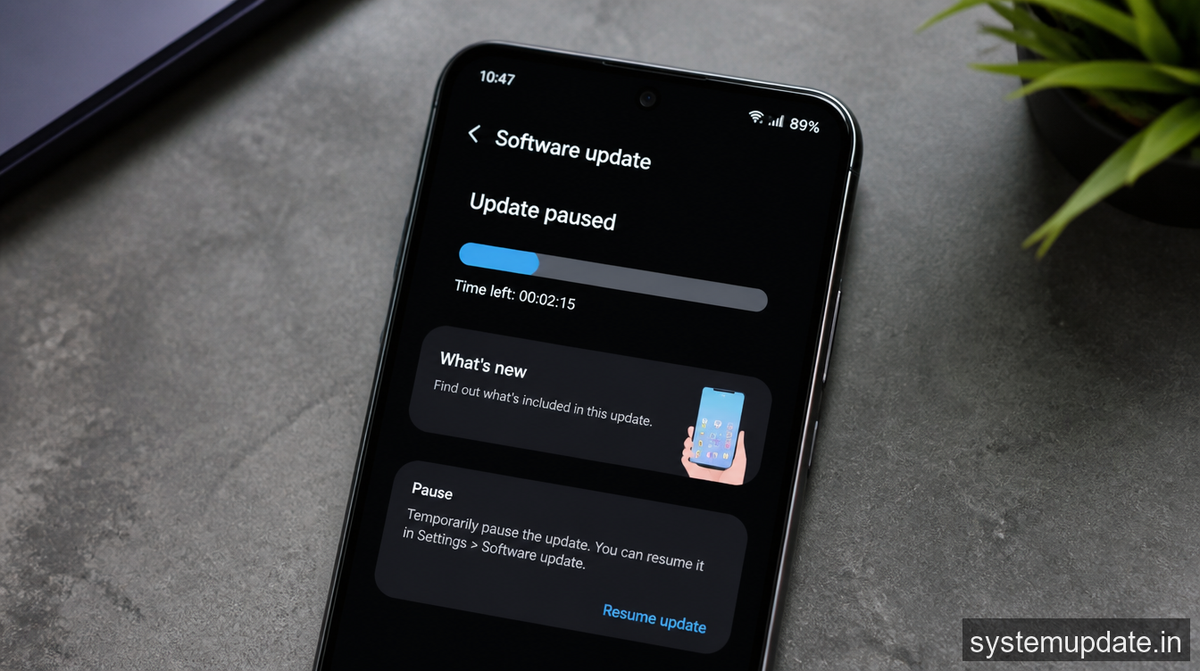
If the above steps don’t resolve the issue, you can try resetting the device’s software update settings to their default values. This method involves clearing the data of the package installer and the software update app, which might resolve any conflicts or corruption causing the update to pause.
To do this, go to Settings > Apps > All Apps > Package Installer (or similar), then tap Storage > Clear Data. Next, go to Settings > Apps > All Apps > Software Update (or similar), then tap Storage > Clear Data. After clearing the data, restart your device and check for updates again.
How to Prevent This from Recurring
To minimize the likelihood of encountering the “software update paused” error in the future, ensure your device is regularly updated, and you have sufficient storage space available. Additionally, avoid installing apps that might interfere with system updates, and always download updates over a stable Wi-Fi connection to prevent data disruptions.
Frequently Asked Questions
Q: Why does my Android device keep pausing during software updates?
A: The “software update paused” error can occur due to various reasons, including corrupt system files, insufficient storage space, or conflicts with other apps. Regularly updating your device and maintaining sufficient storage space can help prevent this issue.
Q: Can I update my Android device using mobile data?
A: Yes, you can update your Android device using mobile data. However, it’s recommended to use a Wi-Fi connection to avoid excessive data charges, especially if you have a limited data plan. If you’re using a device in India, consider updating over a Wi-Fi network to avoid charges from providers like Jio or Airtel.
Q: How do I check for software updates on my Android device?
A: To check for software updates on your Android device, go to Settings > System > System Update. If an update is available, download and install it. Ensure you have a stable internet connection and sufficient battery life before proceeding.
Q: What should I do if my device is running low on storage space?
A: If your device is running low on storage space, consider deleting unused apps, photos, or videos to free up some space. You can also use apps like PhonePe or Paytm to manage your storage and delete unnecessary files.
Q: Can I use apps like PhonePe or Paytm to manage my storage and delete unnecessary files?
A: Yes, you can use apps like PhonePe or Paytm to manage your storage and delete unnecessary files. These apps can help you identify and remove unused files, freeing up space on your device.
Final Thoughts
If you’re experiencing the “software update paused” error on your Android device, try the steps outlined above to resolve the issue. Remember to always maintain sufficient storage space, avoid installing apps that might interfere with system updates, and download updates over a stable Wi-Fi connection. By following these tips, you can ensure your device stays up-to-date and runs smoothly.
Next Steps: Check for software updates on your Android device now and ensure you have sufficient storage space available. If you encounter any issues during the update process, refer to the steps outlined in this article for troubleshooting guidance.
