


What causes this error
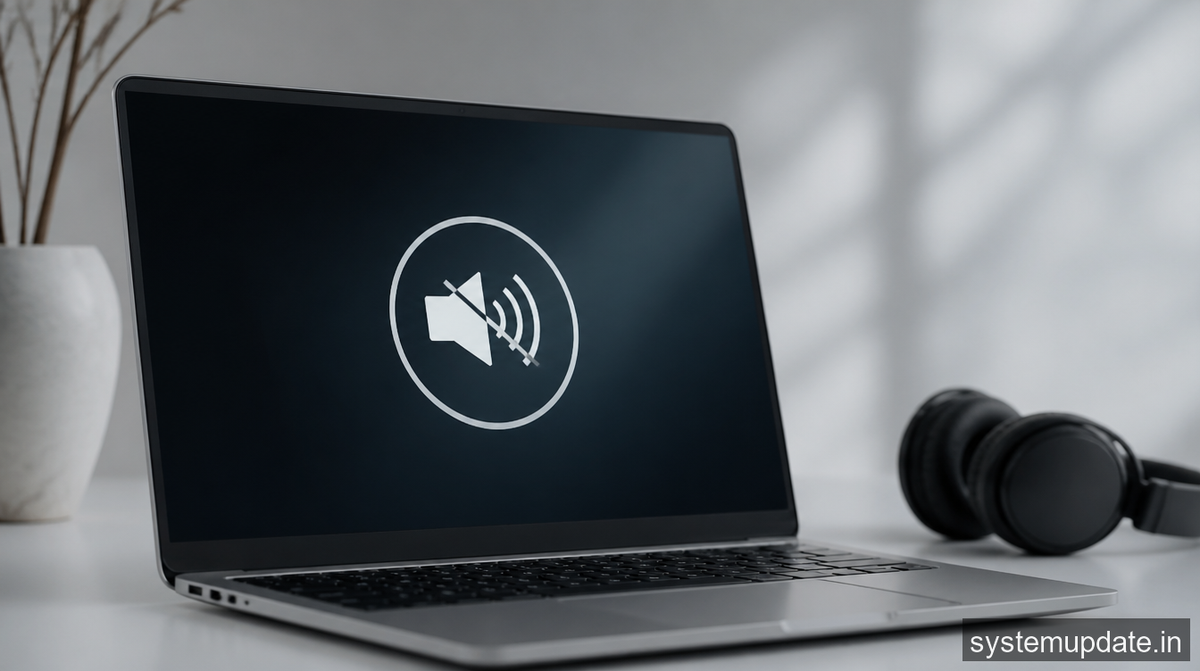
The Windows 11 audio not working issue can stem from several causes, but one of the most common is a driver conflict or a corrupt audio driver. Sometimes, a failed update or a malware infection can also lead to this problem. In many cases, users have reported that after installing a Windows update, their audio stopped working. It’s essential to identify the root cause to apply the correct fix. The system component involved is usually the audio driver or the Windows Audio service.
- Restart your laptop: This might seem simple, but sometimes, a restart can resolve the issue. Click on the Start menu, select the Power button, and choose Restart. After your laptop restarts, check if the audio is working. If not, proceed to the next step.
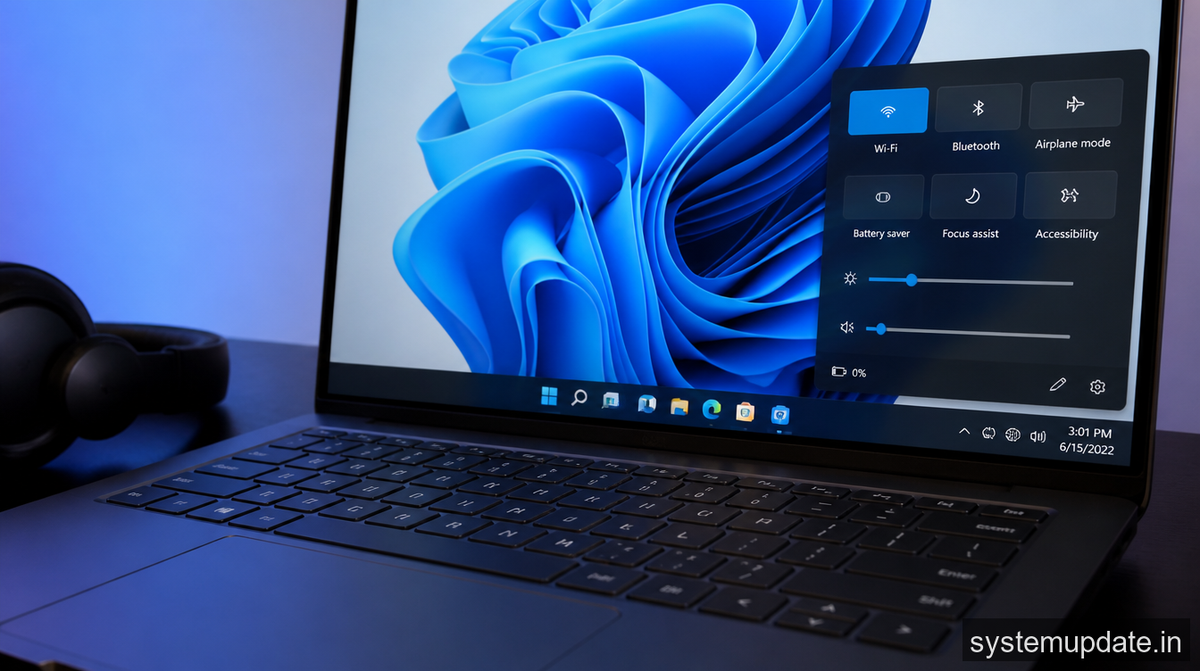
- Check the audio settings: Ensure that the audio is not muted or disabled. Right-click on the speaker icon in the system tray and select Open Volume mixer. Check that the audio is not muted and the volume is turned up. You can also check the audio settings by going to Settings > System > Sound.
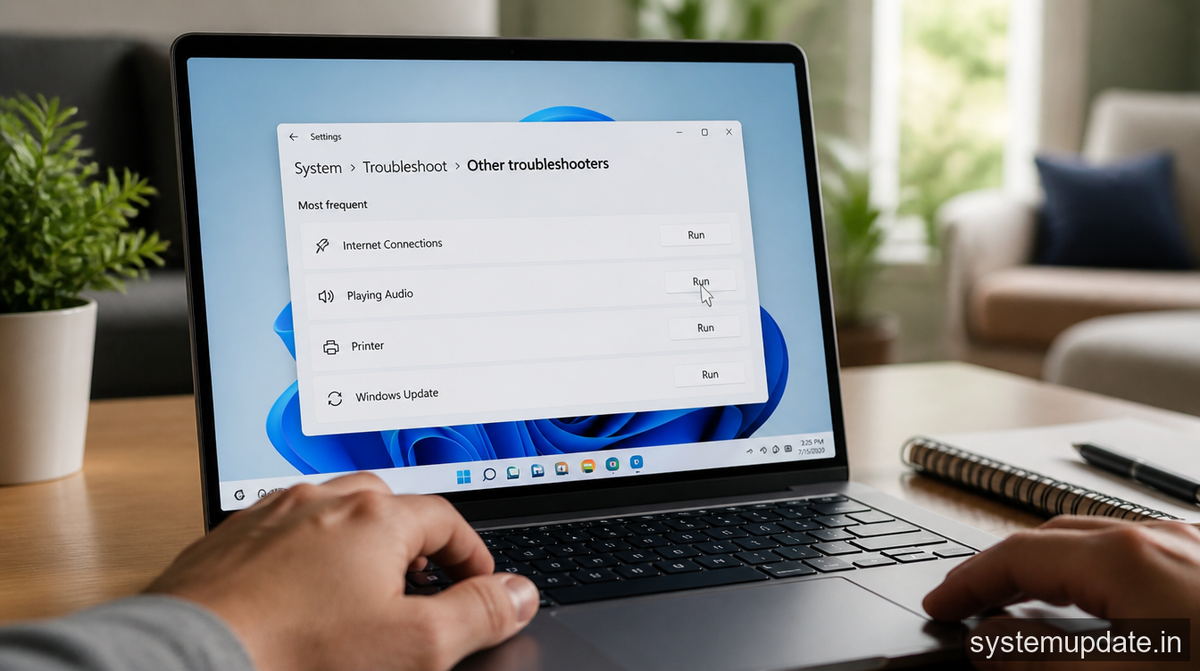
- Run the Audio Troubleshooter: Windows 11 has a built-in Audio Troubleshooter that can help identify and fix audio-related issues. To access it, go to Settings > System > Sound > Troubleshoot. Follow the prompts to run the troubleshooter.
- Update the audio driver: An outdated or corrupt audio driver can cause audio issues. To update the audio driver, go to the Device Manager (Press the Windows key + X and select Device Manager), expand the Sound, video and game controllers section, right-click on the audio device, and select Update driver. Choose Search automatically for updated driver software and follow the prompts.
- Disable and re-enable the audio device: Sometimes, disabling and re-enabling the audio device can resolve the issue. In the Device Manager, right-click on the audio device and select Disable device. Wait for a few seconds and then enable it again.
- After completing these steps, check if the audio is working. If the issue persists, we have an alternative method to try.
- If that didn’t work — alternative method
- If the above steps didn’t resolve the issue, we can try resetting the Windows Audio service or reinstalling the audio driver.
- To reset the Windows Audio service, you’ll need to use the Command Prompt. Open the Command Prompt as an administrator (right-click on the Start button and select Command Prompt (Admin)), and type the following commands, pressing Enter after each:
`net stop audiosrv``net start audiosrv`
- This will stop and then start the Windows Audio service. Check if the audio is working after this.
If the issue still persists, you might need to reinstall the audio driver. To do this, go to the Device Manager, right-click on the audio device, and select Uninstall device. Restart your laptop and Windows will attempt to reinstall the driver.
In the US, where data costs are generally less of a concern, users can freely download and install updates without worrying about incurring excessive data charges. However, it’s still essential to ensure that any downloads are necessary and come from trusted sources, such as Microsoft or the device manufacturer.
For instance, if you’re using a Realtek audio driver, you might need to update or reinstall it to fix the issue. On the other hand, if the problem is with the Windows Audio service, you might need to restart the service or reset its settings. Common triggers include a failed update, a corrupt file, or a driver conflict. In India, where data costs can be a concern, it’s crucial to ensure that any updates or downloads are necessary and won’t incur excessive data charges, especially for users on mobile data plans with Jio, Airtel, or other providers.
How to fix Windows 11 audio not working on laptop — step by step
To fix the Windows 11 audio not working issue, we’ll go through a series of steps. Before we begin, ensure you have admin privileges, as some steps will require them.
Frequently asked questions
What if I’m using a USB audio device?
If you’re using a USB audio device, ensure it’s properly connected and recognized by Windows. You might need to install drivers for the device or update the existing ones.
Can I fix this issue without admin privileges?
Some steps, like updating drivers or running the Audio Troubleshooter, require admin privileges. If you don’t have admin privileges, you might need to contact your system administrator or the device owner.
Will this fix work for Windows 10 as well?
While some steps might be similar, the exact steps and solutions might differ for Windows 10. It’s best to consult a Windows 10-specific guide for audio issues.
Can I use a third-party audio driver update tool?
It’s generally not recommended to use third-party driver update tools, as they might install incorrect or outdated drivers. Instead, use the built-in Windows update tools or download drivers from the device manufacturer’s website.
How can I prevent this issue from happening again?
To prevent audio issues in the future, ensure you keep your Windows and drivers up to date, avoid installing unnecessary software, and regularly scan your system for malware.
Final thoughts
If you’re still struggling with the Windows 11 audio not working issue, try restarting your laptop and checking the audio settings first. If the issue persists, work your way through the steps outlined above. Remember to always be cautious when downloading and installing updates, especially if you’re on a mobile data plan. In India, you can use apps like PhonePe or Paytm to keep track of your data usage and avoid excessive charges. By following these steps and being mindful of your data usage, you should be able to resolve the Windows 11 audio not working issue and enjoy uninterrupted audio on your laptop.
