


What causes this error
The no sound issue on Windows 11 after an update is often caused by a corrupted or outdated audio driver. When Windows 11 installs an update, it may overwrite the existing audio driver with a new one that’s not fully compatible with your system. This can lead to a range of problems, including no sound at all. Another common trigger is a conflict between the audio driver and other system components, such as the Windows Audio service or the Sound Settings app. In some cases, a failed update can also cause the audio driver to become corrupted, leading to no sound.
To understand the root cause of the issue, let’s take a look at the system components involved. The Windows Audio service is responsible for managing audio devices and drivers on your system. If this service is not running or is configured incorrectly, it can cause no sound issues. Similarly, the Sound Settings app is responsible for configuring audio devices and settings on your system. If this app is not functioning correctly, it can also lead to no sound problems. In India, where data costs can be a concern, it’s especially important to ensure that your audio driver is up to date and functioning correctly to avoid wasting data on unnecessary downloads.
How to fix no sound on Windows 11 after update — step by step
To fix the no sound issue on Windows 11 after an update, you’ll need to follow these steps. Please note that you’ll need admin privileges to complete these steps.
- Restart your system: Sometimes, a simple reboot can resolve the issue. Restart your system and check if the sound is working.
- After this step, you should see the Windows login screen, and if the sound is working, you’ll hear the login sound.
- Update your audio driver: Outdated audio drivers can cause no sound issues. To update your audio driver, follow these steps:
- Press the Windows key + X and select Device Manager.
- In the Device Manager, expand the Sound, video and game controllers section.
- Right-click on your audio device (e.g., Realtek Audio) and select Update driver.
- Click on Search automatically for updated driver software and follow the prompts to update your driver.
After this step, you should see the updated driver version in the Device Manager.
Run the Windows Audio Troubleshooter: The Windows Audio Troubleshooter can help resolve common audio issues. To run the troubleshooter, follow these steps:
- Press the Windows key + S to open the Search bar.
- Type “troubleshoot” and select Troubleshoot settings.
- Click on Additional troubleshooters.
- Scroll down and click on Playing audio.
- Click on Run the troubleshooter and follow the prompts to resolve any issues.
After this step, you should see a report detailing any issues found and resolved by the troubleshooter.
Disable and re-enable the Windows Audio service: Sometimes, disabling and re-enabling the Windows Audio service can resolve the issue. To do this, follow these steps:
- Press the Windows key + R to open the Run dialog box.
- Type
services.mscand press Enter. - In the Services window, scroll down and find the Windows Audio service.
- Right-click on the service and select Stop.
- Wait for 10 seconds and then right-click on the service again and select Start.
After this step, you should see the Windows Audio service running in the Services window.
Reset the Sound Settings app: Resetting the Sound Settings app can also resolve the issue. To do this, follow these steps:
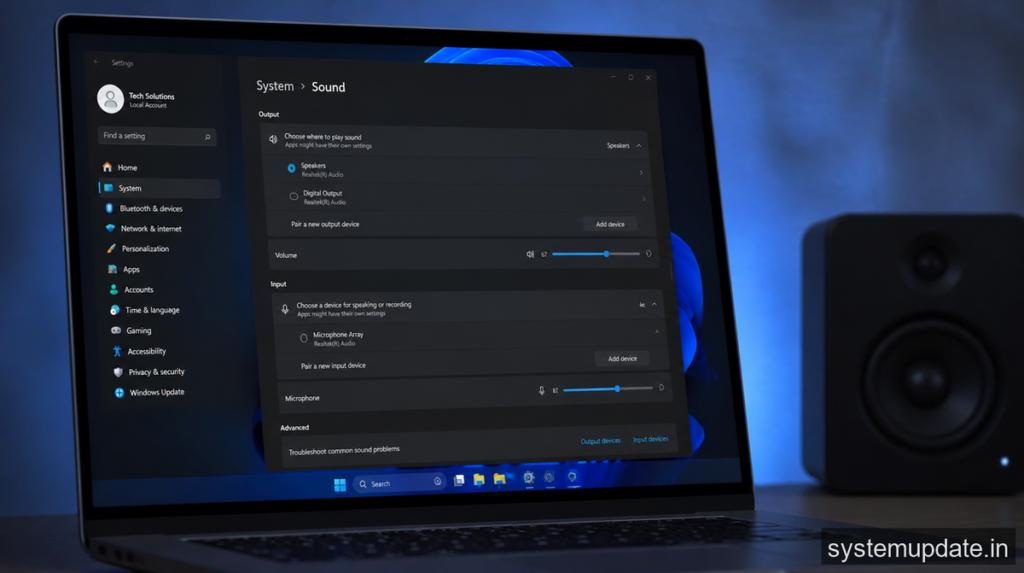
- Press the Windows key + I to open the Settings app.
- Click on System.
- Click on Sound.
- Click on the three dots next to the volume slider and select App volume and device preferences.
- Click on the Reset button at the bottom of the page.
After this step, you should see the Sound Settings app reset to its default settings.
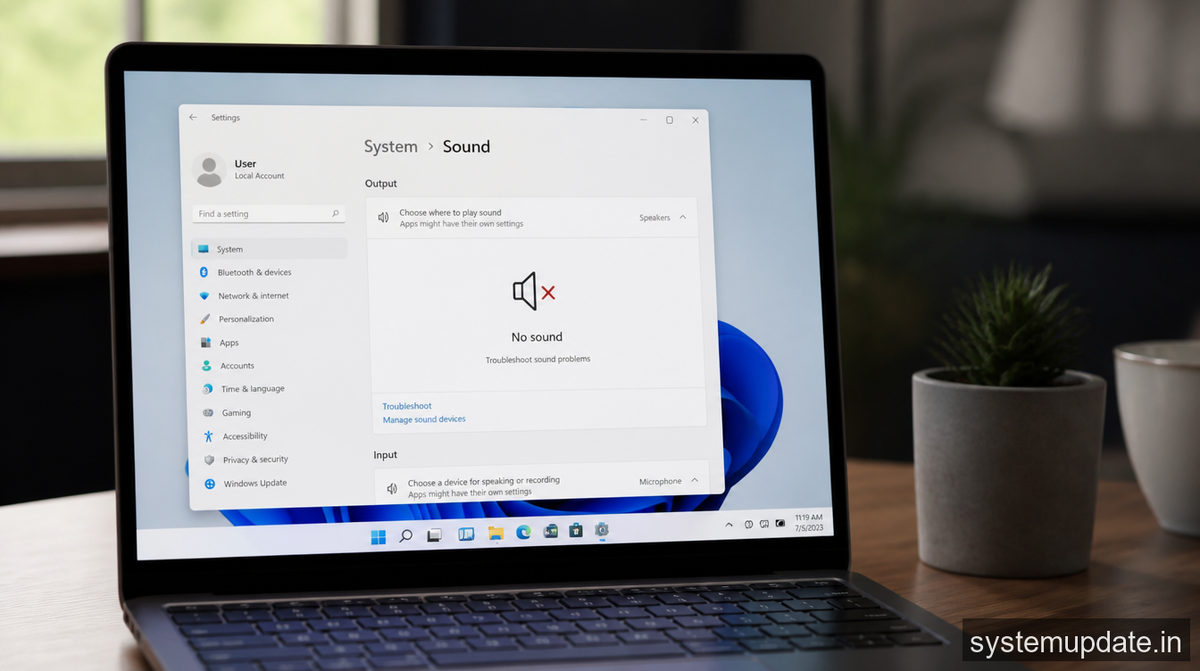
If you’ve completed these steps and the sound is still not working, don’t worry – there are alternative methods you can try.
If that didn’t work — alternative methodIf the above steps didn’t resolve the issue, you can try reinstalling your audio driver or resetting your system to its default settings. To reinstall your audio driver, follow these steps:
Uninstall your audio driver: To uninstall your audio driver, follow these steps:
- Press the Windows key + X and select Device Manager.
- In the Device Manager, expand the Sound, video and game controllers section.
- Right-click on your audio device (e.g., Realtek Audio) and select Uninstall device.
- Click on Uninstall to confirm.
After this step, you should see the audio device removed from the Device Manager.
- Restart your system: Restart your system to ensure the changes take effect.
- Reinstall your audio driver: To reinstall your audio driver, follow these steps:
- Press the Windows key + X and select Device Manager.
- In the Device Manager, expand the Sound, video and game controllers section.
- Right-click on the empty space in the section and select Scan for hardware changes.
- Windows will automatically detect and reinstall your audio driver.
After this step, you should see the audio device reinstalled in the Device Manager.
Frequently asked questions
What if I’m using a USB audio device?
If you’re using a USB audio device, try unplugging it and plugging it back in to see if that resolves the issue.
Can I fix this issue without admin privileges?
No, you’ll need admin privileges to complete the steps outlined above.
Will this fix work for Windows 10?
While the steps outlined above are for Windows 11, some of the steps may also work for Windows 10. However, the exact steps may vary depending on your system configuration.
Can I use a third-party audio driver?
While it’s possible to use a third-party audio driver, it’s generally not recommended as it can cause system instability and other issues.
How can I prevent this issue from happening again in the future?
To prevent this issue from happening again in the future, make sure to keep your audio driver up to date and avoid installing unnecessary software that can conflict with your audio driver.
Final thoughts
If you’re still experiencing issues with no sound on Windows 11 after an update, I recommend trying the alternative method outlined above. Remember to always keep your audio driver up to date and avoid installing unnecessary software to prevent this issue from happening again in the future. In India, where data costs can be a concern, it’s especially important to ensure that your audio driver is up to date and functioning correctly to avoid wasting data on unnecessary downloads.
