
What causes data loss
Data loss can occur due to a variety of reasons, including failed updates, corrupt files, and driver conflicts. For instance, if you’re using an outdated version of Windows, you may be more susceptible to data loss due to security vulnerabilities. Similarly, if you’re using a Mac, you may experience data loss due to a faulty hard drive or solid-state drive (SSD). In both cases, it’s essential to have a reliable data recovery solution in place. One common trigger for data loss is a failed update, which can cause system instability and lead to file corruption. Another trigger is a driver conflict, which can occur when two or more drivers are trying to access the same system resource. In India, where mobile data costs can be high, it’s especially important to be mindful of data usage when recovering files, and using apps like PhonePe or Paytm can help you keep track of your data expenses.
How to recover data — step by step
To recover your data, you’ll need to use a reliable data recovery freeware. One of the most popular options is EaseUS, which offers a range of tools for recovering data from Windows and Mac systems. Here’s how to use it:
- Download and install EaseUS: Go to the EaseUS website and download the data recovery software. Follow the installation instructions to install the software on your computer. You’ll see a progress bar as the software installs, and once it’s complete, you’ll be prompted to launch the application.
- Launch EaseUS and select the drive: Launch the EaseUS software and select the drive from which you want to recover data. You can choose from a range of options, including your desktop, documents folder, and external hard drives. Once you’ve selected the drive, you’ll see a list of files and folders that can be recovered.
- Scan for lost files: Click the “Scan” button to start scanning for lost files. This may take a few minutes, depending on the size of the drive and the amount of data that needs to be recovered. You’ll see a progress bar as the scan completes, and once it’s finished, you’ll be able to view a list of recoverable files.
- Preview and recover files: Once the scan is complete, you can preview the files that can be recovered. Select the files you want to recover and click the “Recover” button to save them to a safe location. You’ll see a confirmation message once the recovery is complete, and you’ll be able to access your recovered files.
If EaseUS didn’t work — alternative method
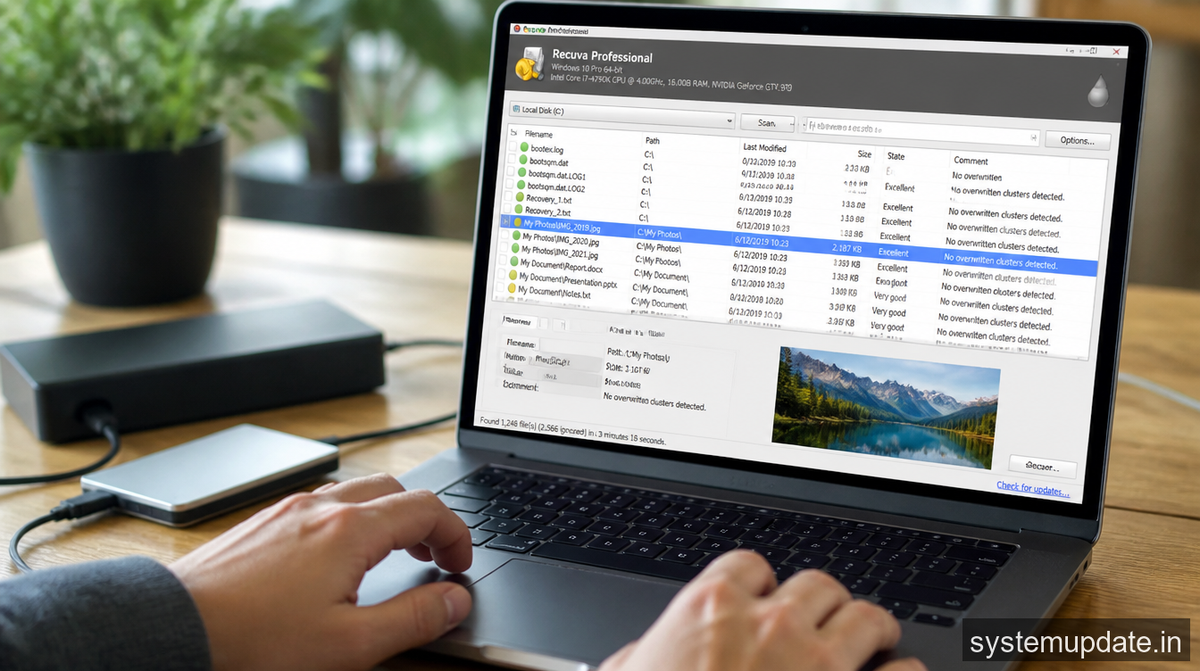
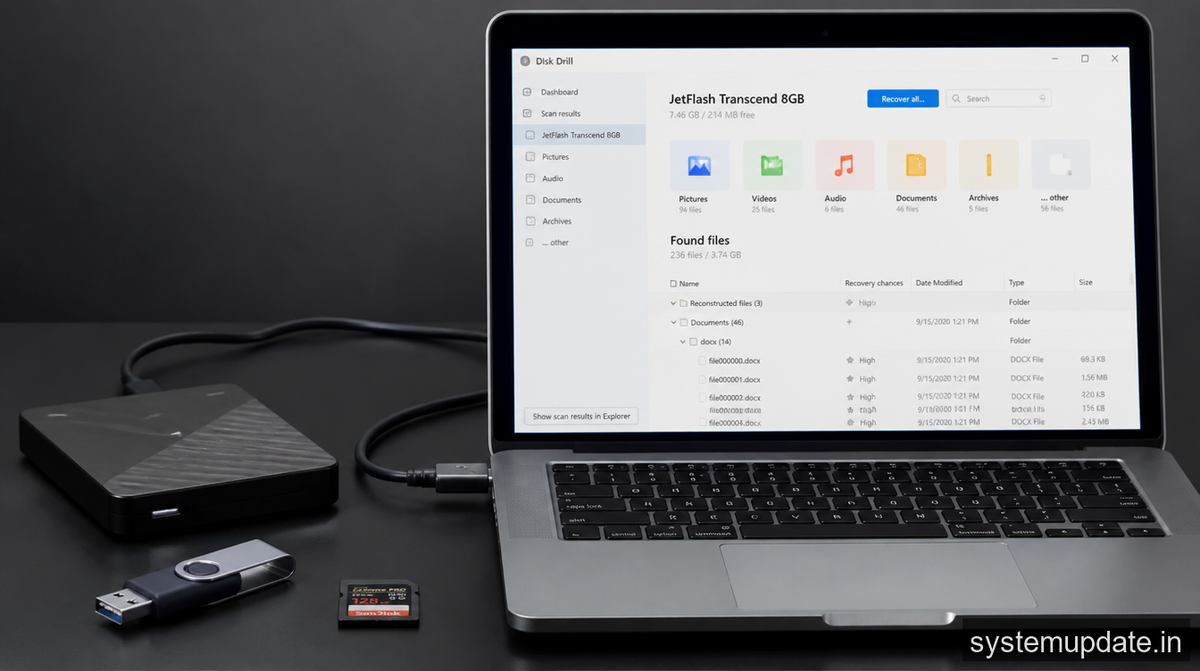
If EaseUS doesn’t work for you, there are alternative methods you can try. One option is to use a different data recovery software, such as Recuva or Disk Drill. These software options offer similar functionality to EaseUS, but may have different features and pricing plans. Another option is to try recovering your data manually, by searching for lost files and folders on your computer. This can be a time-consuming process, but may be effective if you’re looking for a specific file or folder. In the US, you may also want to consider using cloud storage services like OneDrive or Google Drive to backup your files, which can help prevent data loss in the first place.
How to prevent data loss from recurring
To prevent data loss from recurring, it’s essential to take regular backups of your files and folders. You can use a range of backup software options, including EaseUS Todo Backup and Acronis True Image. These software options offer automatic backup scheduling, which can help ensure that your files are always up to date. You should also make sure to update your operating system and software regularly, as this can help prevent security vulnerabilities and reduce the risk of data loss. Additionally, consider using a reliable antivirus software, such as Norton or Malwarebytes, to protect your computer from malware and other online threats.
Frequently asked questions
What is the best data recovery software for Windows?
The best data recovery software for Windows is EaseUS, which offers a range of tools for recovering data from Windows systems.
How do I recover data from a Mac?
To recover data from a Mac, you can use a data recovery software such as EaseUS, which offers a range of tools for recovering data from Mac systems.
Can I recover data from a corrupted hard drive?
Yes, you can recover data from a corrupted hard drive using a data recovery software such as EaseUS.
How long does data recovery take?
The time it takes to recover data depends on the size of the drive and the amount of data that needs to be recovered. It can take anywhere from a few minutes to several hours.
Is data recovery software free?
Some data recovery software options are free, while others require a subscription or one-time payment. EaseUS offers a free trial version of its software, which can be used to recover up to 2GB of data.
Final thoughts
If you’re experiencing data loss, don’t panic. With the right data recovery software, you can recover your files and folders quickly and easily. EaseUS is one of the most reliable data recovery freeware options available, and it’s easy to use, even for beginners. So why not give it a try today and see how it can help you recover your lost data? Remember to always backup your files regularly, and consider using cloud storage services to prevent data loss in the future. Whether you’re in India or the US, taking these steps can help you protect your data and ensure that you’re always prepared for any situation.