


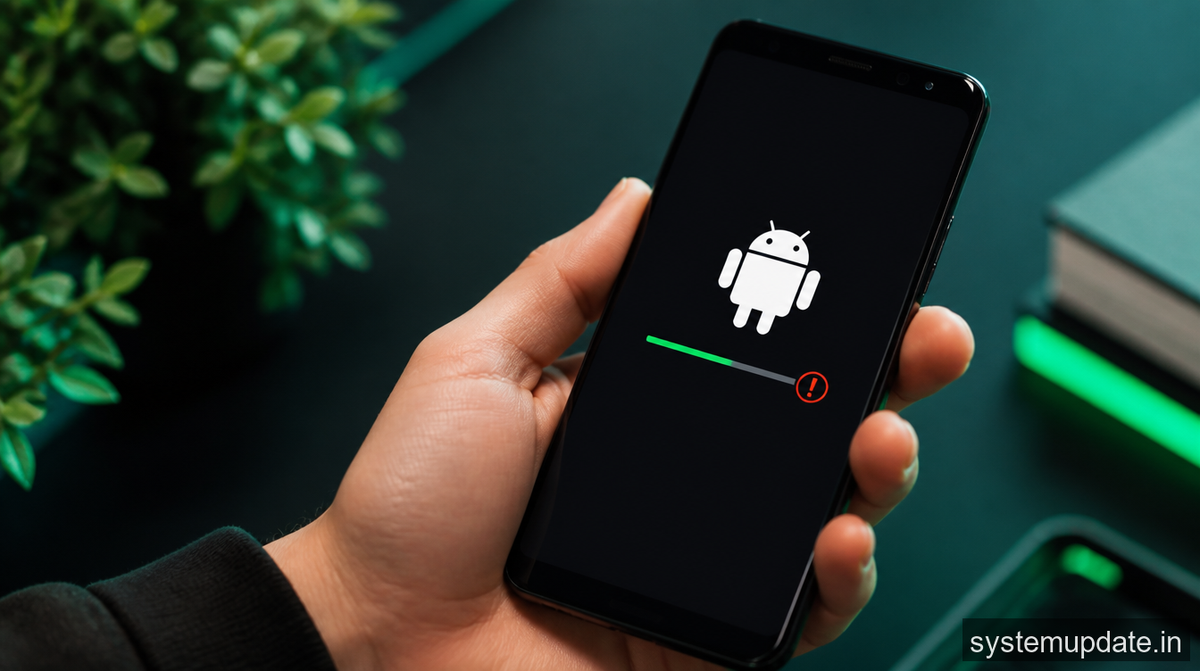
What causes this error
The Android update failed error usually occurs when there’s a problem with the update package or the installation process. This can happen due to a variety of reasons, such as a failed update, corrupt files, or driver conflicts. Sometimes, it can also be caused by insufficient storage space on your device or a faulty internet connection. To fix this error, we need to identify the root cause and take corrective action. In most cases, the issue lies with the com.android.packageinstaller system component, which is responsible for installing and updating apps on your device.
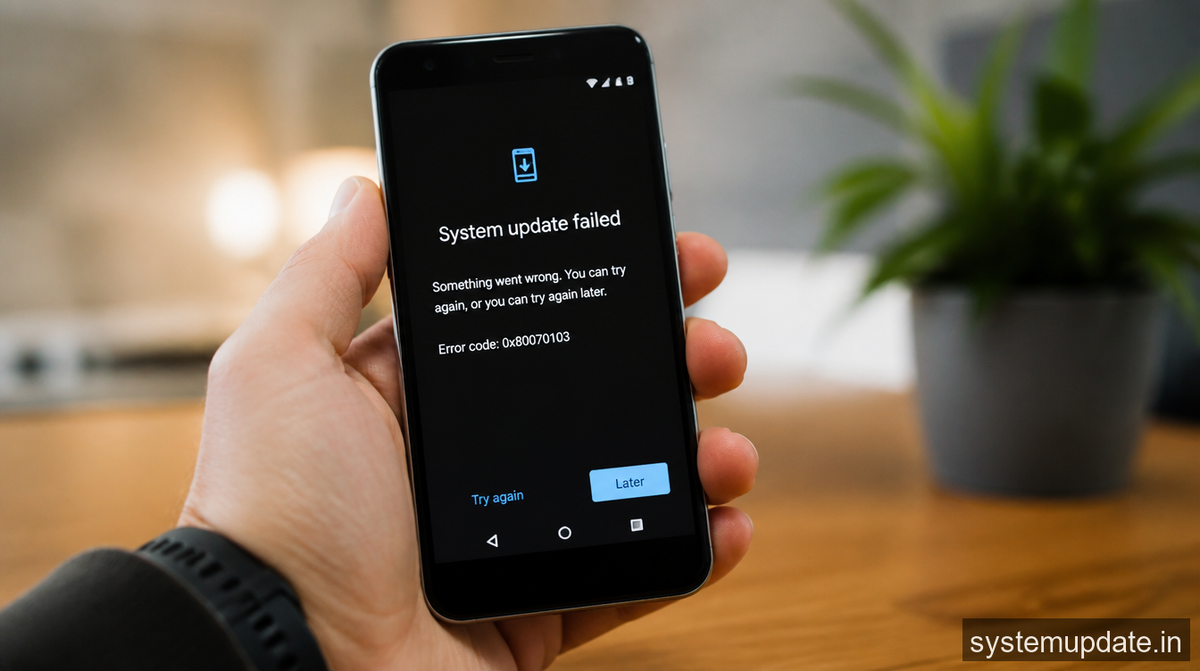
The com.android.packageinstaller component can get corrupted or outdated, leading to installation failures. Other common triggers include failed updates, corrupt files, and driver conflicts. For instance, if you’re using a custom ROM or have installed a third-party app that modifies system files, it can cause compatibility issues with the update package. Similarly, if your device has insufficient storage space or a faulty internet connection, it can prevent the update from installing correctly.
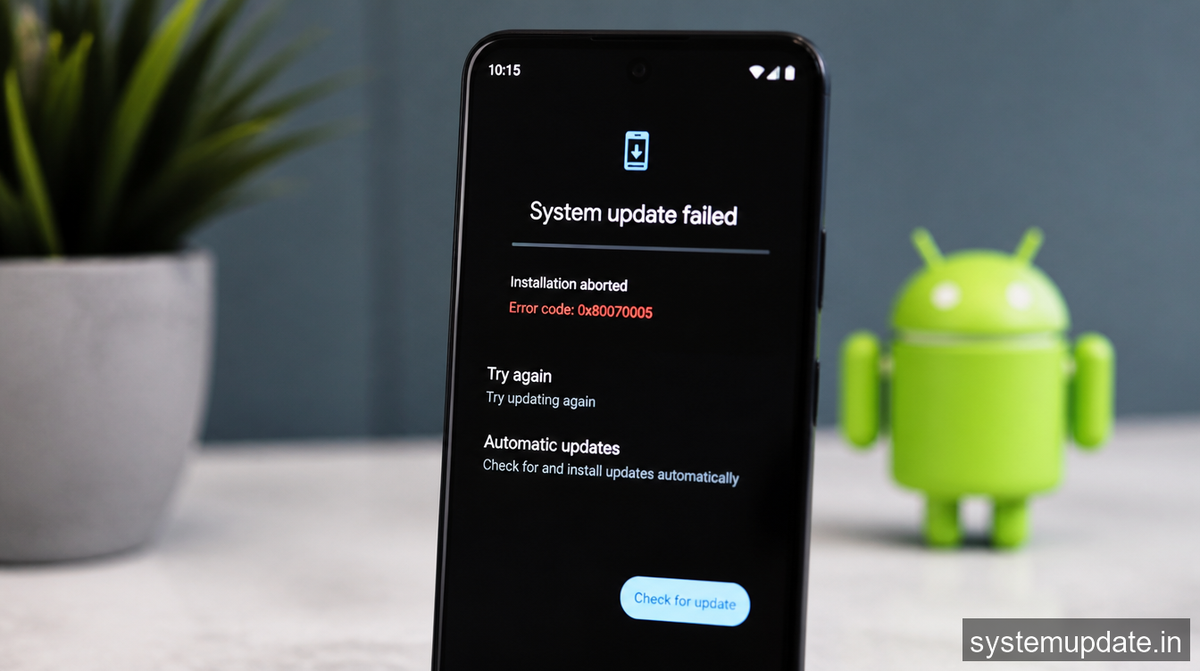
How to fix Android update failed error — step by step
To fix the Android update failed error, we’ll need to take a few steps. Before we begin, make sure you have a stable internet connection and sufficient storage space on your device. You’ll also need to enable Developer Options on your device, which can be done by going to Settings > About phone > Build number and tapping on it seven times.
Clear cache and data of the Package Installer app: Go to Settings > Apps > All apps > Package Installer > Storage > Clear cache and data. This will remove any corrupt files or data that might be causing the issue.
After clearing the cache and data, you should see a confirmation message on your screen.
Disable and re-enable the Package Installer app: Go to Settings > Apps > All apps > Package Installer > Disable. Wait for a few seconds and then enable it again.
You should see a message saying that the app has been disabled and then re-enabled.
Check for updates again: Go to Settings > System > System update > Check for update. If an update is available, download and install it.
If the update installs successfully, you’ll see a confirmation message on your screen. If not, proceed to the next step.
Boot your device in Safe Mode: Press and hold the Power button until your device restarts. As soon as it starts booting up, release the Power button and immediately hold the Volume down button. Keep holding it until you see the Safe Mode prompt on your screen.
In Safe Mode, your device will only load the essential system apps, which can help you identify if a third-party app is causing the issue.
Uninstall recently installed apps: In Safe Mode, go to Settings > Apps > All apps and uninstall any apps that you’ve installed recently.
After uninstalling the apps, restart your device normally and check for updates again.
If that didn’t work — alternative method
If the above steps don’t work, you can try an alternative method. Sometimes, the issue can be resolved by flashing the stock ROM or using a third-party recovery tool. However, this method requires more technical expertise and can potentially void your device’s warranty. You can search for tutorials specific to your device model and follow the instructions carefully.
Another option is to use a third-party app like OTA Update Center or Update Manager to download and install the update manually. These apps can help you bypass the built-in update mechanism and install the update directly. However, be cautious when using third-party apps, as they may not be compatible with your device or may cause further issues.
How to prevent this from recurring
To prevent the Android update failed error from recurring, make sure to keep your device’s software up to date and regularly clean up cache and data of system apps. You can also consider installing a reputable antivirus app to scan your device for malware and other security threats. Additionally, avoid installing apps from unknown sources, as they can potentially harm your device.
Frequently asked questions
What does the Android update failed error mean?
The Android update failed error means that your device is unable to install a software update due to a problem with the update package or the installation process.
Can I fix the Android update failed error without losing my data?
Yes, you can try fixing the error without losing your data by following the steps outlined in this article. However, if you’re unable to fix the issue, you may need to perform a factory reset, which will erase all your data.
How do I know if my device is eligible for an update?
You can check if your device is eligible for an update by going to Settings > System > System update > Check for update. If an update is available, you’ll see a notification on your screen.
Can I install updates manually using a third-party app?
Yes, you can install updates manually using a third-party app like OTA Update Center or Update Manager. However, be cautious when using third-party apps, as they may not be compatible with your device or may cause further issues.
What if I’m still having trouble after trying all the steps?
If you’re still having trouble after trying all the steps, you may want to consider visiting a authorized service center or contacting the manufacturer’s support team for further assistance.
Final thoughts
If you’re still struggling with the Android update failed error, don’t worry. Try the steps outlined in this article, and if you’re still having trouble, consider seeking help from a professional. Remember to always keep your device’s software up to date and regularly clean up cache and data of system apps to prevent issues like this from recurring. The first thing to try right now is to clear the cache and data of the Package Installer app and then check for updates again.
