


What to Look for in Reliable Free PC Transfer Software
When it comes to choosing the right PC transfer software, there are several factors to consider. First and foremost, you want a program that can transfer all your files, settings, and programs quickly and efficiently. You also want a program that is easy to use, even for those who aren’t tech-savvy. And, of course, you want a program that is free and reliable. With these factors in mind, I’ve compiled a list of the top reliable free PC transfer software options for 2026. Some of the key features to look for include the ability to transfer files, settings, and programs, as well as the ability to clone your hard drive or SSD. You should also consider the software’s compatibility with your operating system, as well as its user interface and customer support.
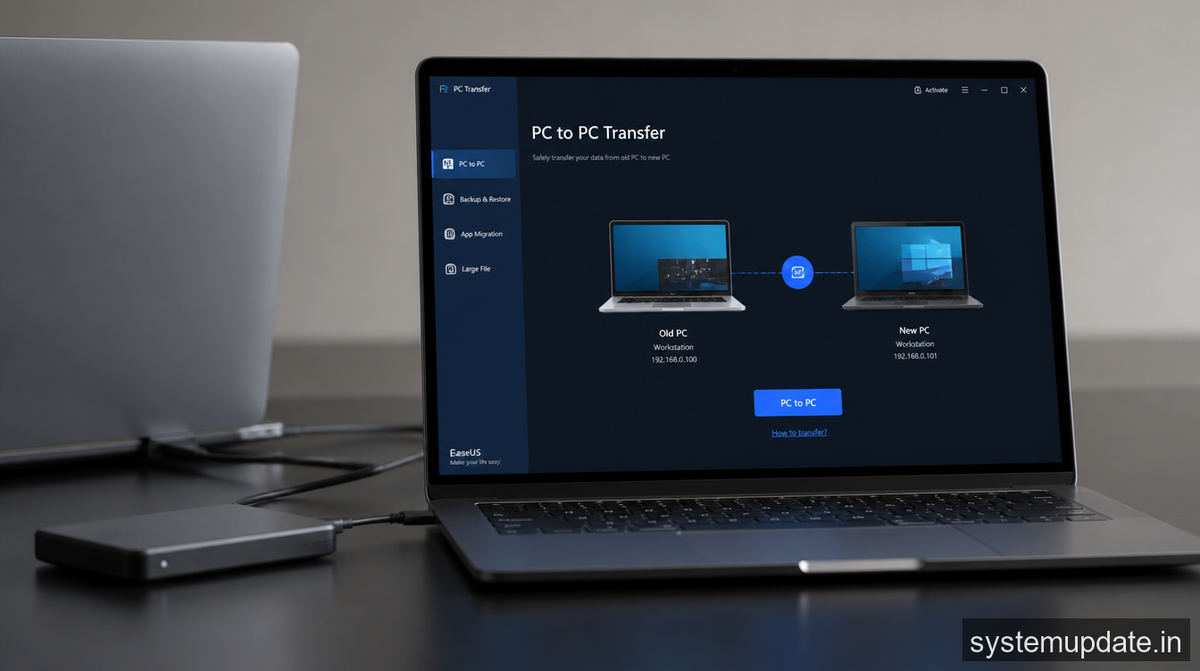
One of the top options is EaseUS Todo PCTrans, a program that allows you to transfer all your files, settings, and programs to a new PC via a network connection or image file. Another option is Laplink PCmover, a program that can transfer all your files, settings, and programs, including your operating system, to a new PC. And then there’s Acronis True Image, a program that allows you to clone your hard drive or SSD, making it easy to transfer all your files, settings, and programs to a new PC. I’ll provide a detailed review of each of these options, including their features, pros, and cons, to help you make an informed decision.
How to Use Reliable Free PC Transfer Software
Using reliable free PC transfer software is relatively straightforward. First, you’ll need to download and install the software on both your old and new PCs. Then, you’ll need to launch the software and follow the prompts to initiate the transfer process. The software will guide you through the process, which typically involves selecting the files, settings, and programs you want to transfer, and then waiting for the transfer to complete. The transfer process can take anywhere from a few minutes to several hours, depending on the amount of data being transferred and the speed of your internet connection. It’s also important to note that some software may require you to purchase a license or subscription in order to access all of its features.
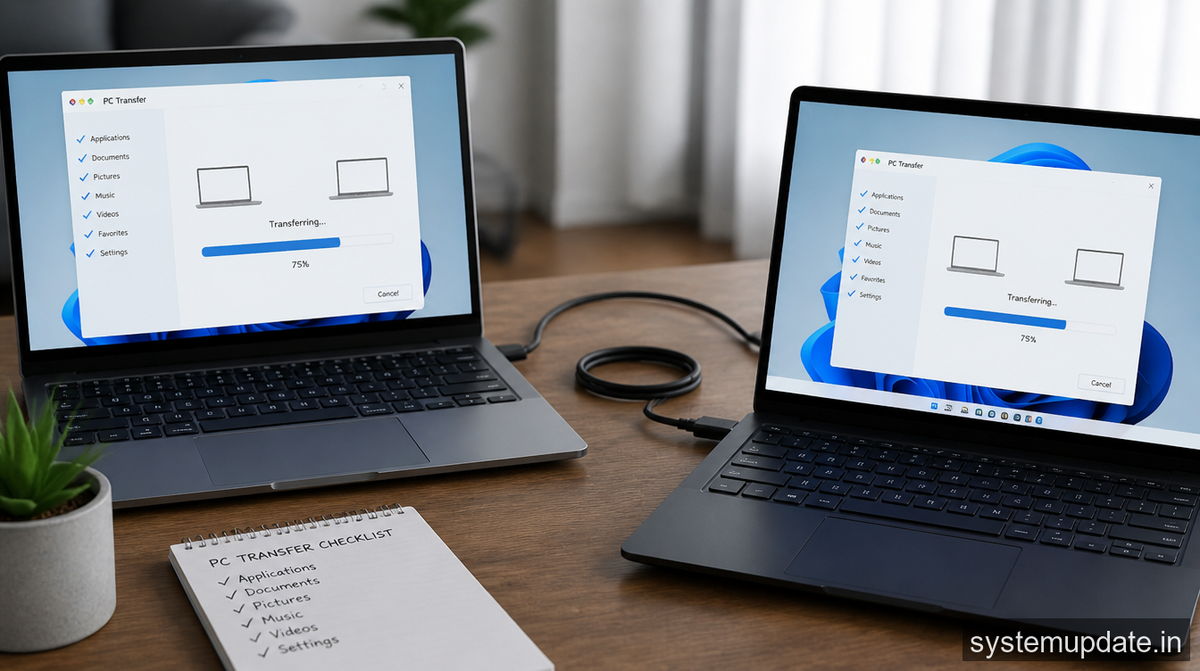
For example, EaseUS Todo PCTrans offers a free trial version that allows you to transfer up to 500MB of data, but if you need to transfer more data, you’ll need to purchase a license. Laplink PCmover, on the other hand, offers a free version that allows you to transfer all your files, settings, and programs, but it may not include all the features of the paid version. Acronis True Image offers a 30-day free trial, after which you’ll need to purchase a subscription to continue using the software. I’ll provide a detailed comparison of the features and pricing plans of each software option, to help you make an informed decision.
Benefits of Using Reliable Free PC Transfer Software
Using reliable free PC transfer software can save you a significant amount of time and hassle when transferring your files, settings, and programs to a new PC. These programs can also help you avoid the risk of data loss or corruption, which can occur when transferring data manually. Additionally, many of these programs offer additional features, such as disk cloning and backup, which can help you protect your data and ensure that you’re always prepared in case of a disaster. Some of the benefits of using reliable free PC transfer software include the ability to transfer all your files, settings, and programs quickly and efficiently, the ability to clone your hard drive or SSD, and the ability to backup your data to an external drive or cloud storage service.
For instance, EaseUS Todo PCTrans offers a disk cloning feature that allows you to create an exact copy of your hard drive or SSD, which can be used to restore your data in case of a disaster. Laplink PCmover offers a backup feature that allows you to backup your data to an external drive or cloud storage service, which can be used to restore your data in case of a disaster. Acronis True Image offers a disk imaging feature that allows you to create a disk image of your hard drive or SSD, which can be used to restore your data in case of a disaster. I’ll provide a detailed review of the benefits and features of each software option, to help you make an informed decision.
Top Reliable Free PC Transfer Software Options for 2026
In this section, I’ll provide a detailed review of the top reliable free PC transfer software options for 2026. I’ll cover the features, pros, and cons of each option, as well as provide a step-by-step guide on how to use them. Some of the top options include EaseUS Todo PCTrans, Laplink PCmover, and Acronis True Image. I’ll also provide a comparison of the features and pricing plans of each software option, to help you make an informed decision.
For example, EaseUS Todo PCTrans offers a user-friendly interface that makes it easy to transfer all your files, settings, and programs to a new PC. Laplink PCmover offers a comprehensive transfer option that allows you to transfer all your files, settings, and programs, including your operating system, to a new PC. Acronis True Image offers a disk cloning feature that allows you to create an exact copy of your hard drive or SSD, which can be used to restore your data in case of a disaster. I’ll provide a detailed review of each of these options, including their features, pros, and cons, to help you make an informed decision.
Frequently Asked Questions
What is the best reliable free PC transfer software for 2026?
The best reliable free PC transfer software for 2026 is EaseUS Todo PCTrans, which offers a user-friendly interface and a comprehensive transfer option. However, the best software for you will depend on your specific needs and requirements. I recommend checking out the features and pricing plans of each software option to determine which one is best for you.
How do I use reliable free PC transfer software to transfer my files, settings, and programs to a new PC?
To use reliable free PC transfer software to transfer your files, settings, and programs to a new PC, simply download and install the software on both your old and new PCs, launch the software, and follow the prompts to initiate the transfer process. Make sure to select the files, settings, and programs you want to transfer, and wait for the transfer to complete.
What are the benefits of using reliable free PC transfer software?
The benefits of using reliable free PC transfer software include the ability to transfer all your files, settings, and programs quickly and efficiently, the ability to clone your hard drive or SSD, and the ability to backup your data to an external drive or cloud storage service. Additionally, many of these programs offer additional features, such as disk imaging and backup, which can help you protect your data and ensure that you’re always prepared in case of a disaster.
Can I use reliable free PC transfer software to transfer my operating system to a new PC?
Yes, some reliable free PC transfer software options, such as Laplink PCmover, allow you to transfer your operating system to a new PC. However, this may require a separate license or subscription, and may not be included in the free version of the software. Make sure to check the features and pricing plans of each software option to determine which one is best for you.
How long does it take to transfer my files, settings, and programs using reliable free PC transfer software?
The time it takes to transfer your files, settings, and programs using reliable free PC transfer software will depend on the amount of data being transferred and the speed of your internet connection. However, most transfers can be completed in a matter of minutes or hours, depending on the size of the transfer. Make sure to check the estimated transfer time before initiating the transfer process.
Final Thoughts
In conclusion, reliable free PC transfer software can save you a significant amount of time and hassle when transferring your files, settings, and programs to a new PC. By choosing the right software for your needs, you can ensure a seamless transfer and avoid the risk of data loss or corruption. Remember to always backup your data before initiating the transfer process, and to follow the prompts carefully to ensure a successful transfer. With the right software and a little patience, you can have your new PC up and running in no time. I recommend checking out the features and pricing plans of each software option to determine which one is best for you, and to always read the reviews and ratings from other users to get a sense of the software’s reliability and effectiveness.
